

Feishu Bot
The Feishu bot lets users call AIvis from Feishu one-on-one conversations, groups, or app entry points. Treat it as a governed entry point before launch: accept messages only from approved sources, use only the knowledge and tools available to the current user or group, and keep every response traceable.
Use Cases
Management Boundary
Before Configuration
Before configuring the bot, confirm that:
- You have an HTTPS callback URL that Feishu can reach from the public internet.
- You can sign in to the Feishu Open Platform, and the current account can create or manage custom apps.
- The Feishu client and Open Platform are using the same tenant or account type. If the Feishu client uses a personal account, switch the Open Platform to the matching account.
- The AIvis bot configuration page is open so you can copy the callback URL and fill in the Feishu credentials.
- The approved groups, departments, workspace, and default Agent or knowledge scope are clear.
App Secret, Verification Token, and Encrypt Key are sensitive. Store them only in protected configuration; do not place real values in public docs, Agent instructions, screenshots, tickets, or chat messages.
Create the App in Feishu
After opening the Feishu Open Platform, confirm that the account in the upper-right corner belongs to the target company or personal tenant. If it is not the right account, switch accounts first, then open the Developer Console and Custom Apps page.
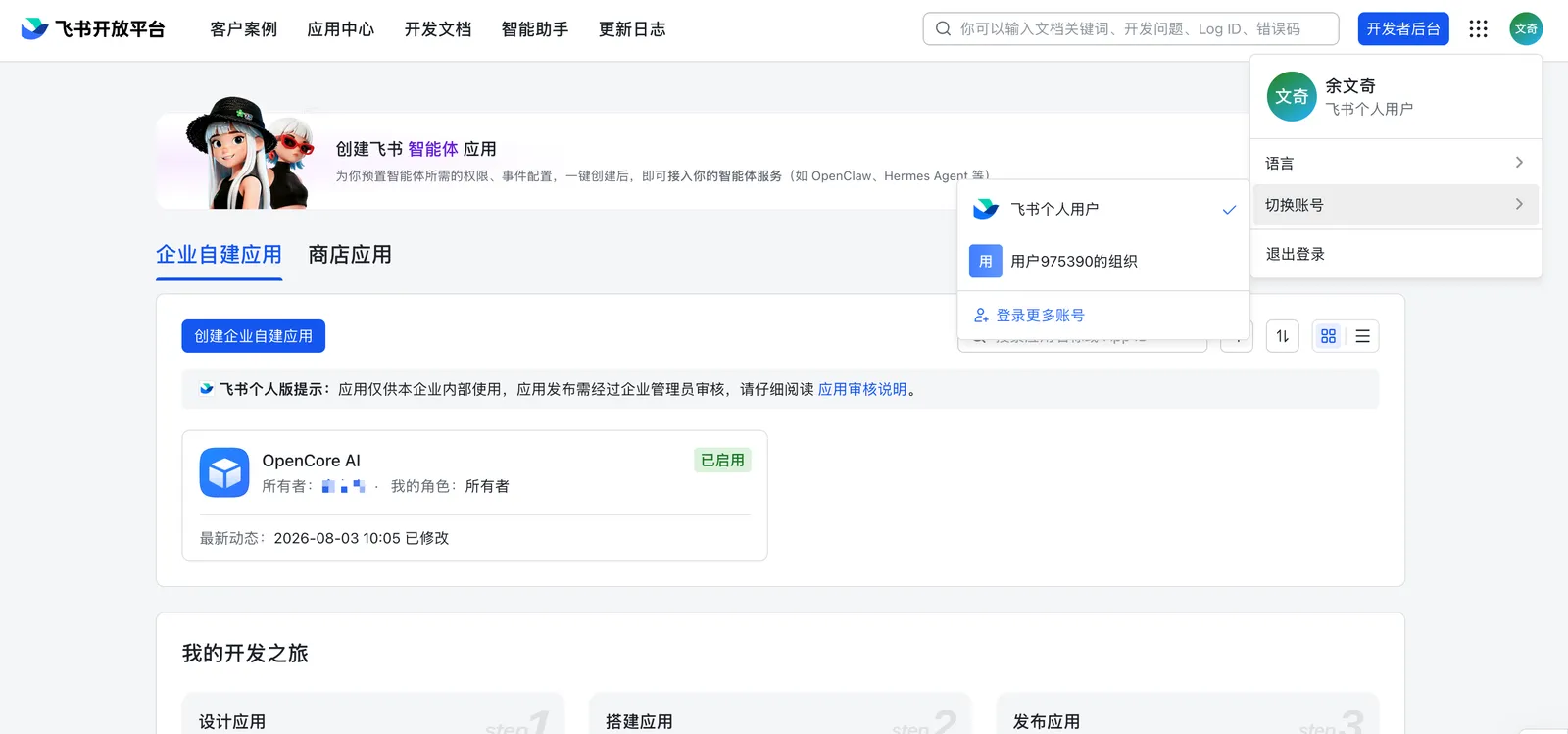
Open custom apps
Open the Feishu Open Platform, go to the Developer Console, and create a new app from Custom Apps. If you already have an AIvis-specific bot app, open that app and continue configuration there.
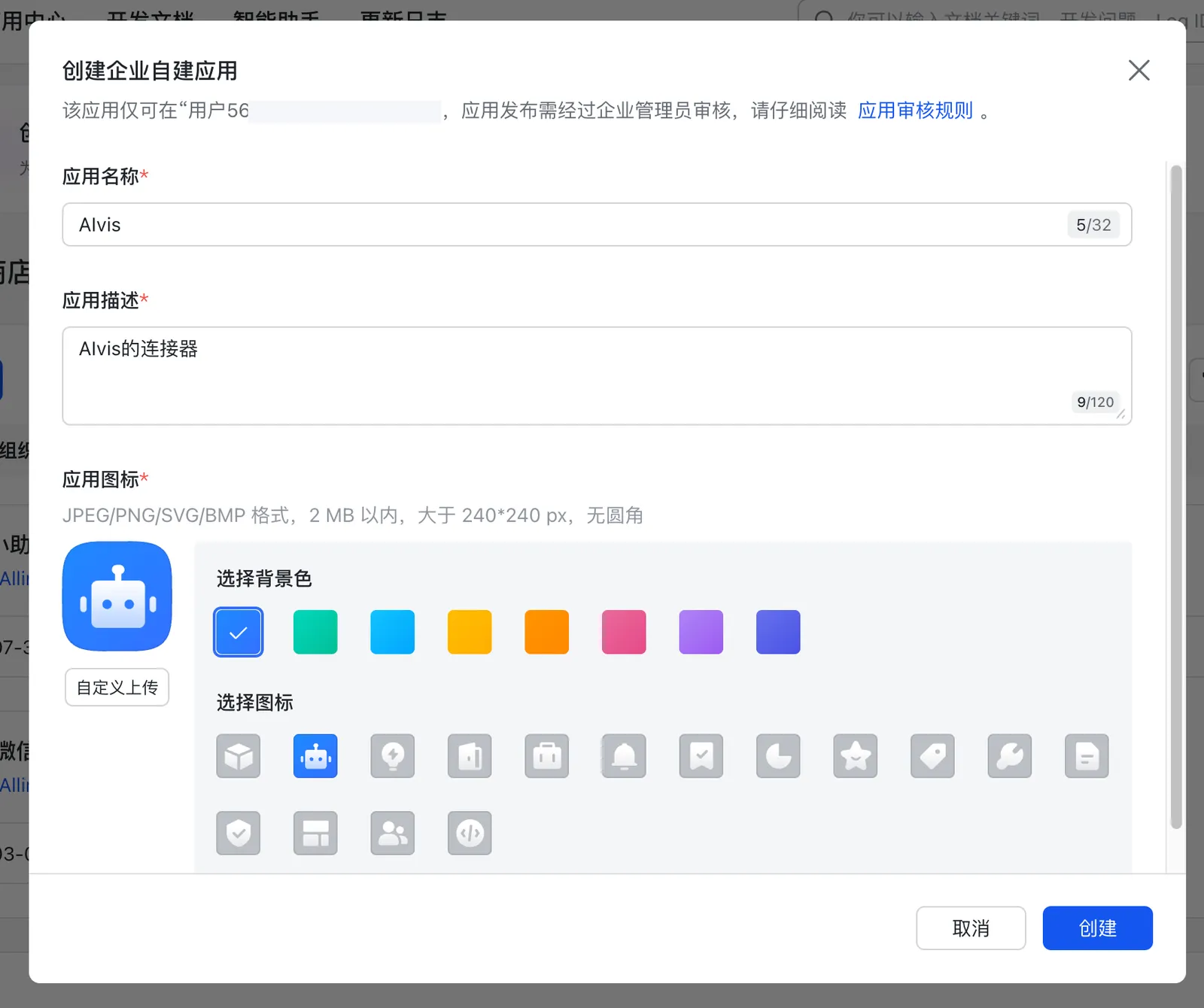
Configure App Credentials
In the Feishu app management page, open Credentials & Basic Info and copy the App ID and App Secret from App Credentials. Return to the AIvis bot configuration page and map them as follows:
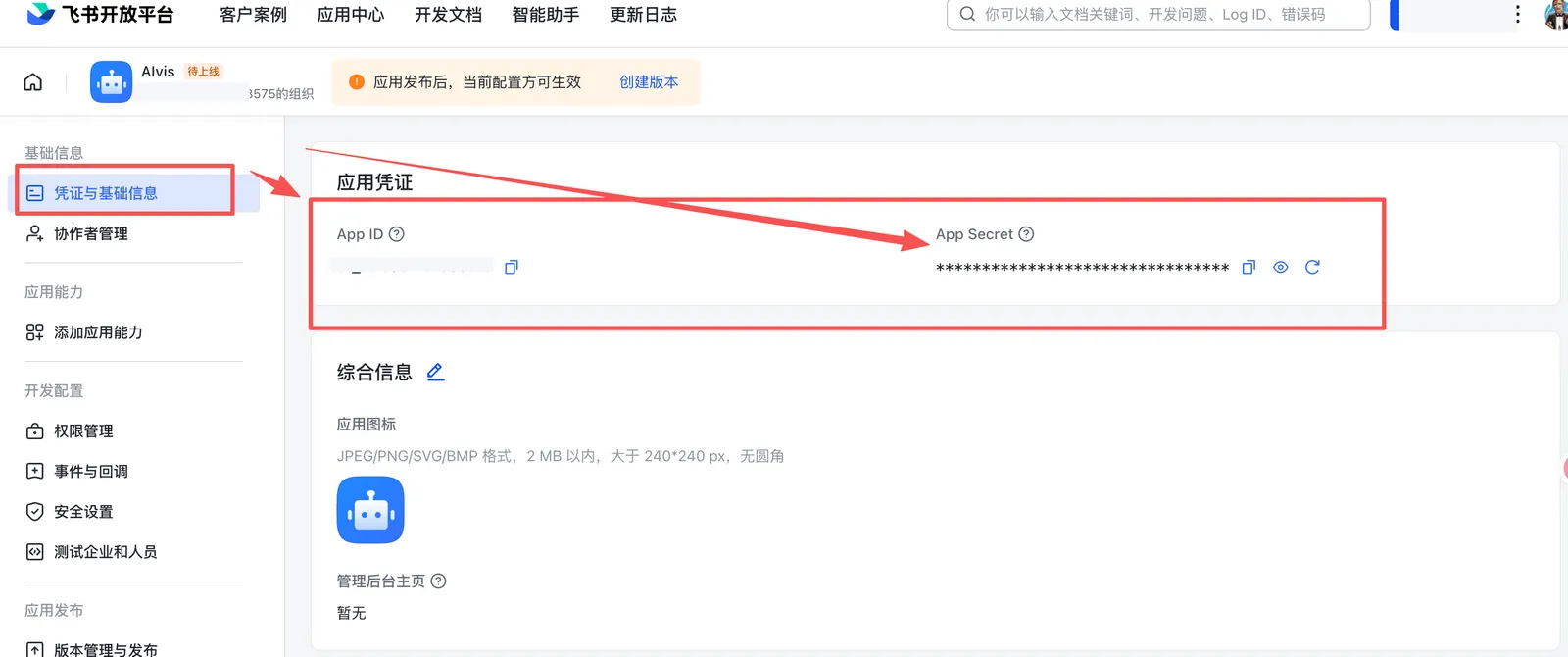
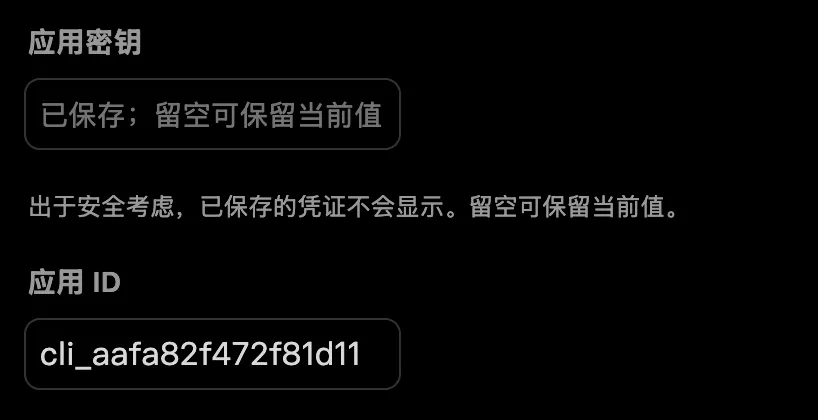
Keep these rules in mind:
App IDandApp Secretmust come from the same Feishu app.- Do not paste a personal user ID, tenant ID, bot name, or tenant token into App ID.
- If you regenerate the
App Secret, update the AIvis configuration; otherwise the bot may fail to obtain access tokens. - If the AIvis field says that the value is already saved and can be left blank, leave the secret field empty when you are not rotating it.
Configure Verification Token and Encrypt Key
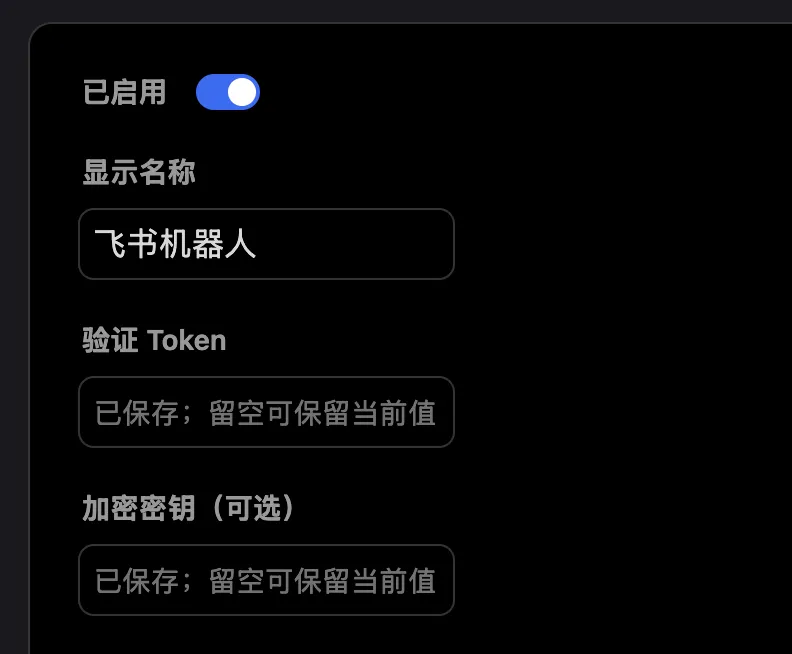
In the Feishu Open Platform sidebar, open Events & Callbacks, then open Encryption Strategy. Copy Verification Token and Encrypt Key, and fill them in on the AIvis bot configuration page:
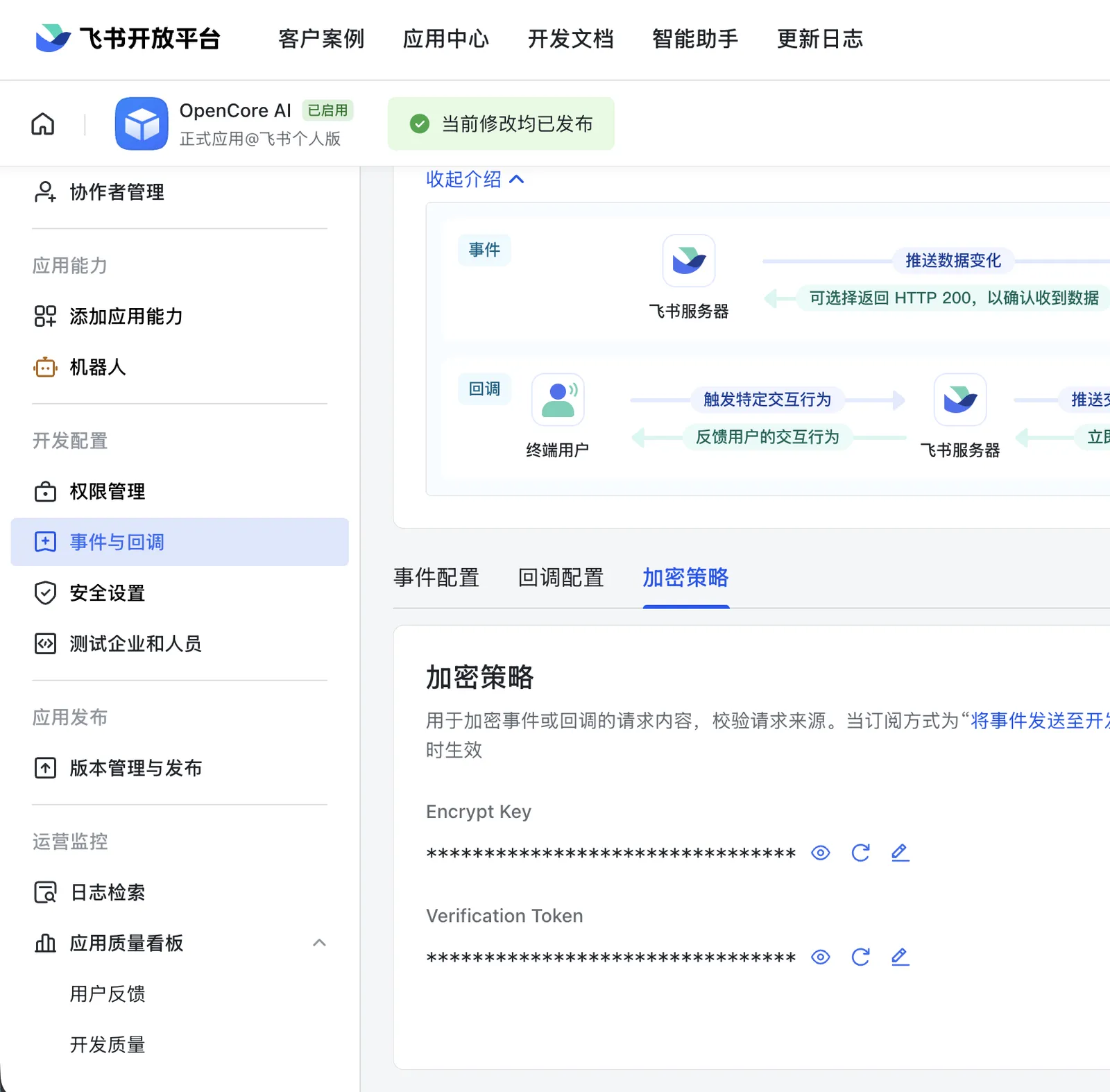
After saving, confirm that the bot is Enabled and that the display name is clear. Saved Verification Token and Encrypt Key values are usually not shown in plaintext; refill them only when you regenerate or change the values in Feishu.
Configure Events and Callback URL
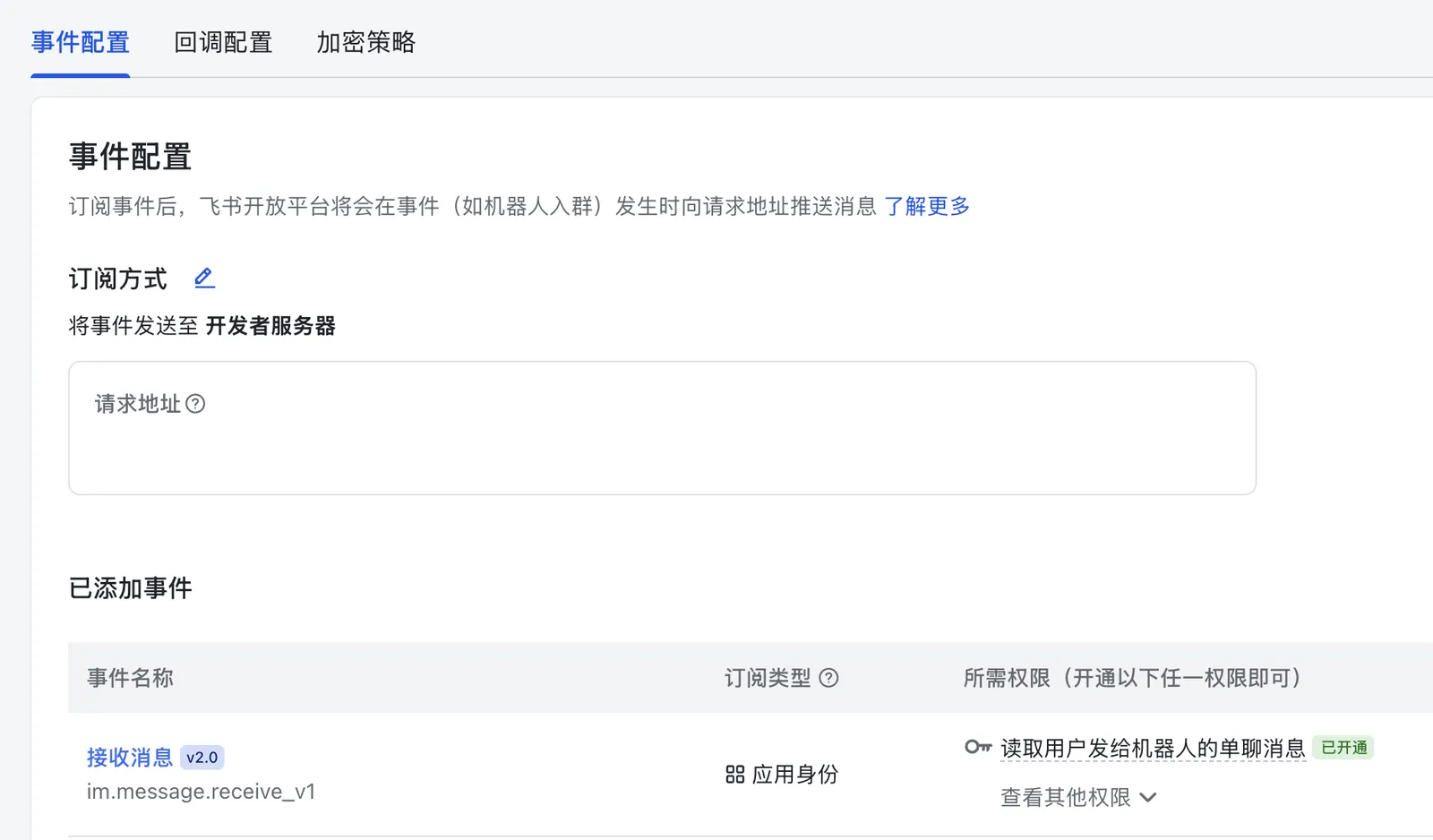
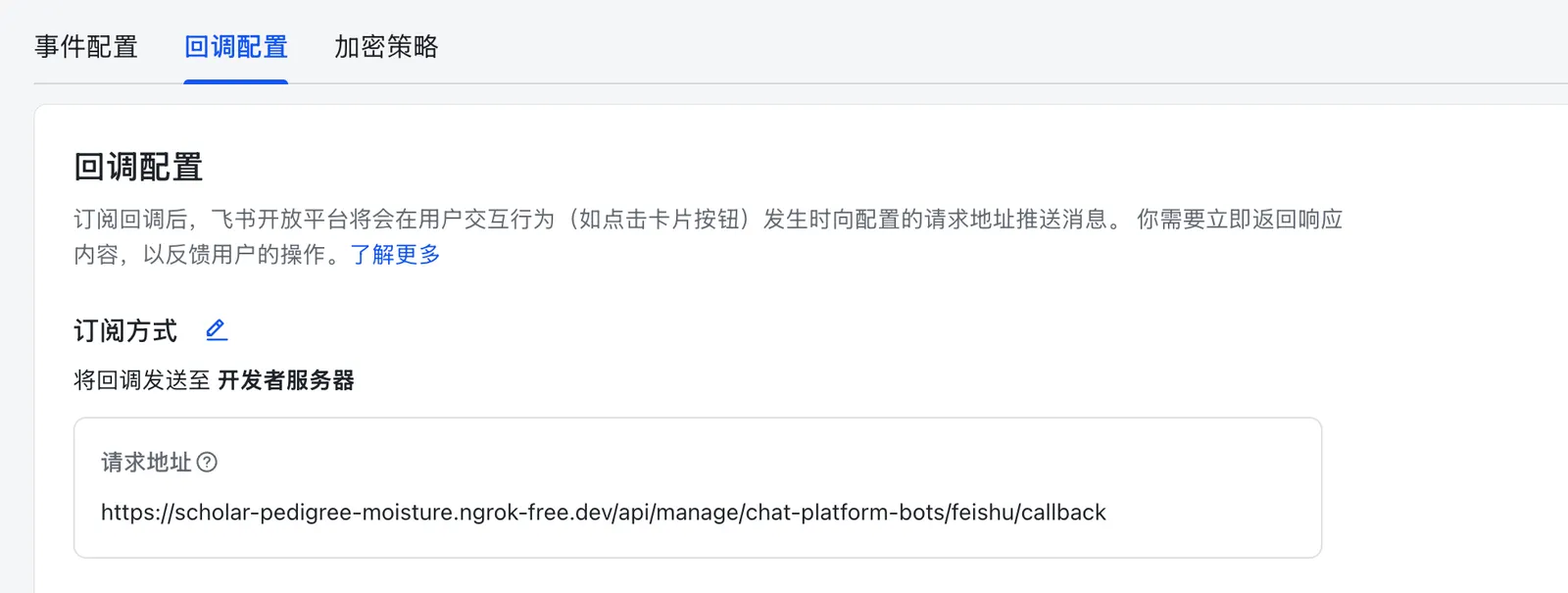
Copy the Callback URL generated by AIvis. Then return to Events & Callbacks in the Feishu Open Platform and configure both places:

- In Event Configuration, set the subscription method to Send events to developer server, paste the callback URL, and save.
- In Callback Configuration, set the subscription method to Send callbacks to developer server, paste the same callback URL, and save.
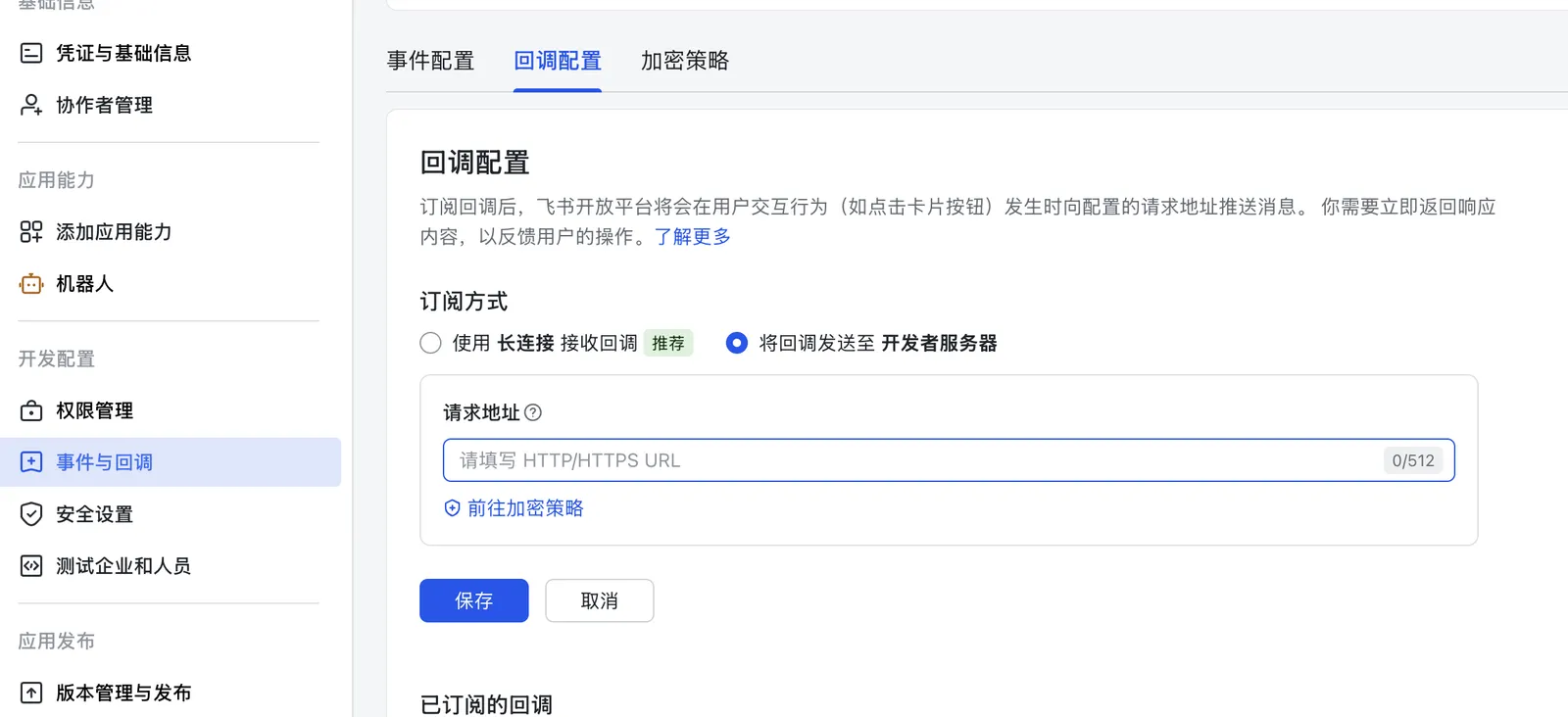
Event Configuration and Callback Configuration are separate tabs. Message events usually arrive through event configuration; some interaction or capability callbacks arrive through callback configuration. Configure the same AIvis callback URL in both places.
After saving, both tabs should show the configured request URL. If Feishu cannot save the URL, first confirm that it uses HTTPS, is reachable from the public internet, and that AIvis can respond to Feishu’s URL verification request.
Add Message Event and Permissions
In Event Configuration, click Add event and add the receive-message event:
In Permission Management, enable only the message permissions the bot actually needs. For one-on-one use, avoid group-message permissions. For group use, add the relevant group-message permissions, such as reading messages that mention the bot.
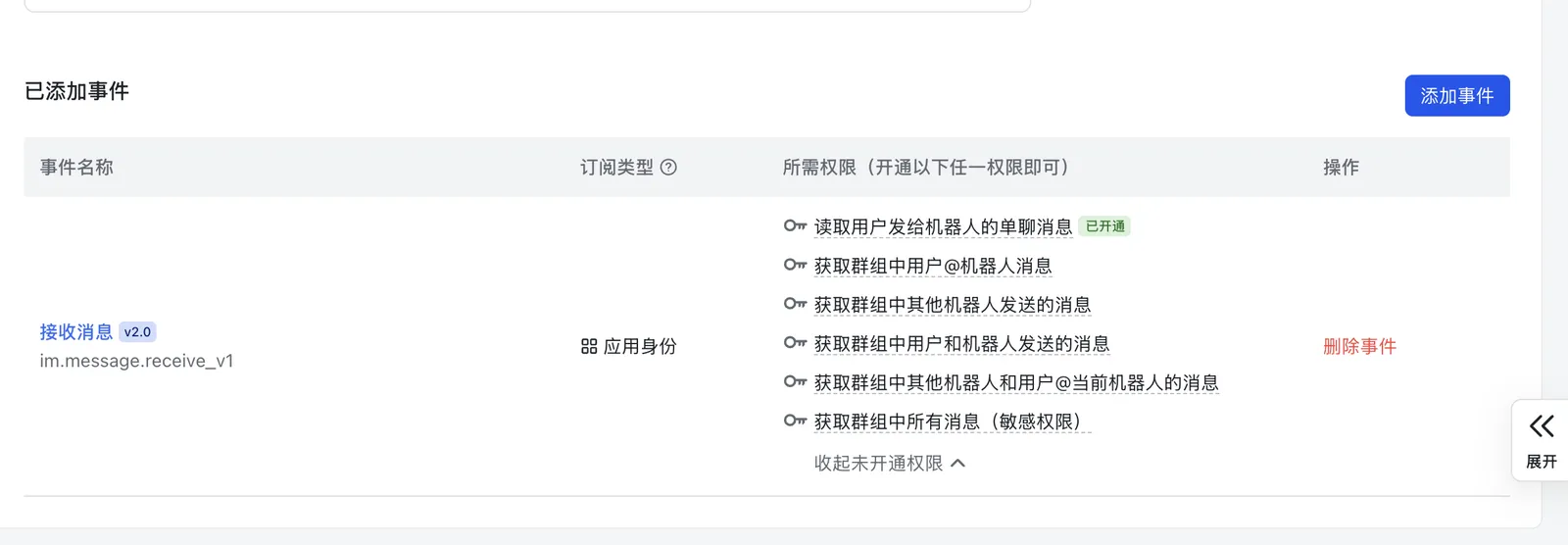
Permission approval and event subscription are separate checks. The bot may fail to receive messages when the event is added but permissions are not approved, or when permissions are approved but the app version has not been released.
Create and Release a Version
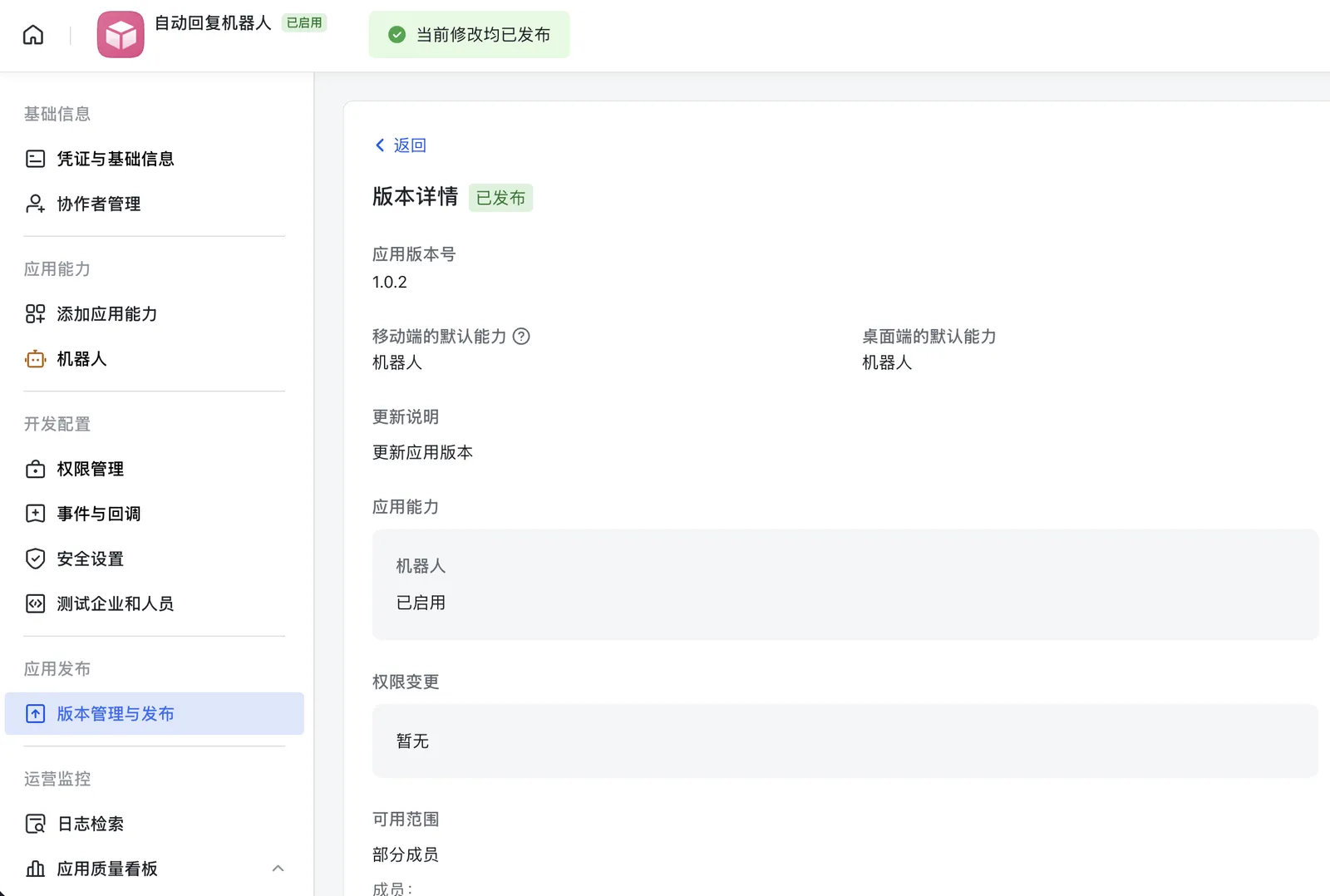
Open Version Management & Release, click Create version, fill in the release information, and submit the release. After release, confirm that:
- The version status is Released.
- The page indicates that all current changes have been released.
- The version details include the Bot capability, and it is enabled.
- The availability scope is expected, such as selected members, departments, or the target company.
If the page says that current changes take effect only after version release, there are still unreleased changes. Even when the AIvis-side configuration is saved, Feishu may not deliver messages or callbacks until the app version is released.
Test the Bot
Before testing, confirm on the AIvis bot configuration page that:
- The bot is Enabled.
- The display name is correct.
- App ID, App Secret, Verification Token, and Encrypt Key are saved.
- The callback URL matches both Feishu event and callback settings.
- The bound Agent, knowledge scope, and tool scope match the test scenario.
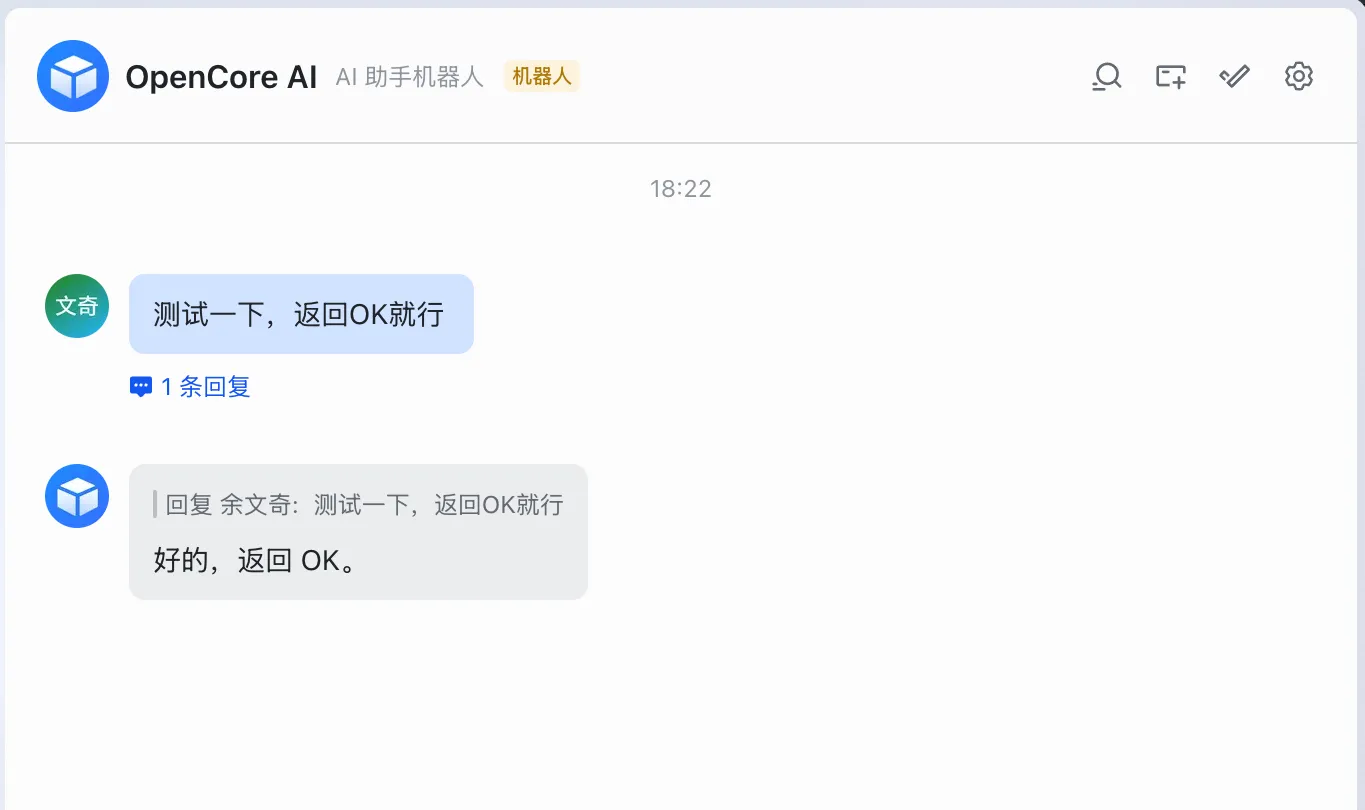
Open a Feishu one-on-one conversation or test group and send a normal question. When the configuration is correct, the bot should receive the message and return a response. Actual response time depends on networking, model calls, and backend processing.
For group testing, add the bot to the target group first and use the trigger method that matches the granted permissions. For example, if the bot can read only group messages that mention it, mention the bot in the group message.
Verify Access Boundaries
After the basic reply test passes, verify governance boundaries:
- Ask an allowed question as an authorized member and confirm that the bot returns the expected answer.
- Ask for unauthorized content as an unauthorized member, group, or document-set audience and confirm that sensitive data is not returned.
- Confirm that tracing or request logs include the source platform, user context, bound Agent, response result, and errors.
- After changing
App Secret,Verification Token,Encrypt Key, event permissions, or availability scope, release the Feishu version again and repeat the tests.
Troubleshooting
Security and Maintenance
- Store real secrets only in the AIvis configuration page; do not place them in docs, screenshots, tickets, chat messages, or source control.
- If a secret may have leaked, regenerate it in Feishu and update AIvis immediately.
- Apply least-privilege permissions. If the bot only needs message auto-replies, do not add document, contact, or administrative permissions.
- When the bot is no longer needed, disable it in AIvis first, then remove unneeded permissions or release changes that take the app offline in Feishu.
- For production, record each Feishu app release time, publisher, change summary, and verification result.
Related Pages
- Agents explains how to configure Agents the bot can call.
- Users, Groups & Roles explains how access boundaries apply to members and groups.
- Tracing explains how to audit bot requests.
- Feishu Knowledge Connector explains how to index Feishu knowledge spaces.