

WeCom Bot
The WeCom bot connects AIvis to WeCom conversations. The recommended path is to create a Smart Bot in the WeCom client or admin console, choose API mode, and use long-connection mode.
Use it for internal Q&A, ticket assistance, and notifications. Do not treat it as unrestricted history export. Before rollout, confirm message permissions, availability scope, default knowledge access policy, and audit paths.
Use Cases
Management Boundary
Before Configuration
Before configuration, confirm:
- You have WeCom administrator permissions.
- You can access the WeCom Admin Console, or you have switched to an administrator account in the WeCom client.
- The AIvis WeCom bot configuration page is open and ready for
Bot IDandSecret. - The groups, departments, members, workspace, default Agent, and knowledge scope the bot may serve are defined.
- You plan to use long-connection mode. Long-connection mode does not require a public callback URL, but Bot ID, Secret, and message permissions must still be configured correctly.
Secretis sensitive. Store it only in protected configuration. Do not put real secrets in public docs, Agent instructions, screenshots, tickets, or chat messages.
Open the Smart Bot Entry
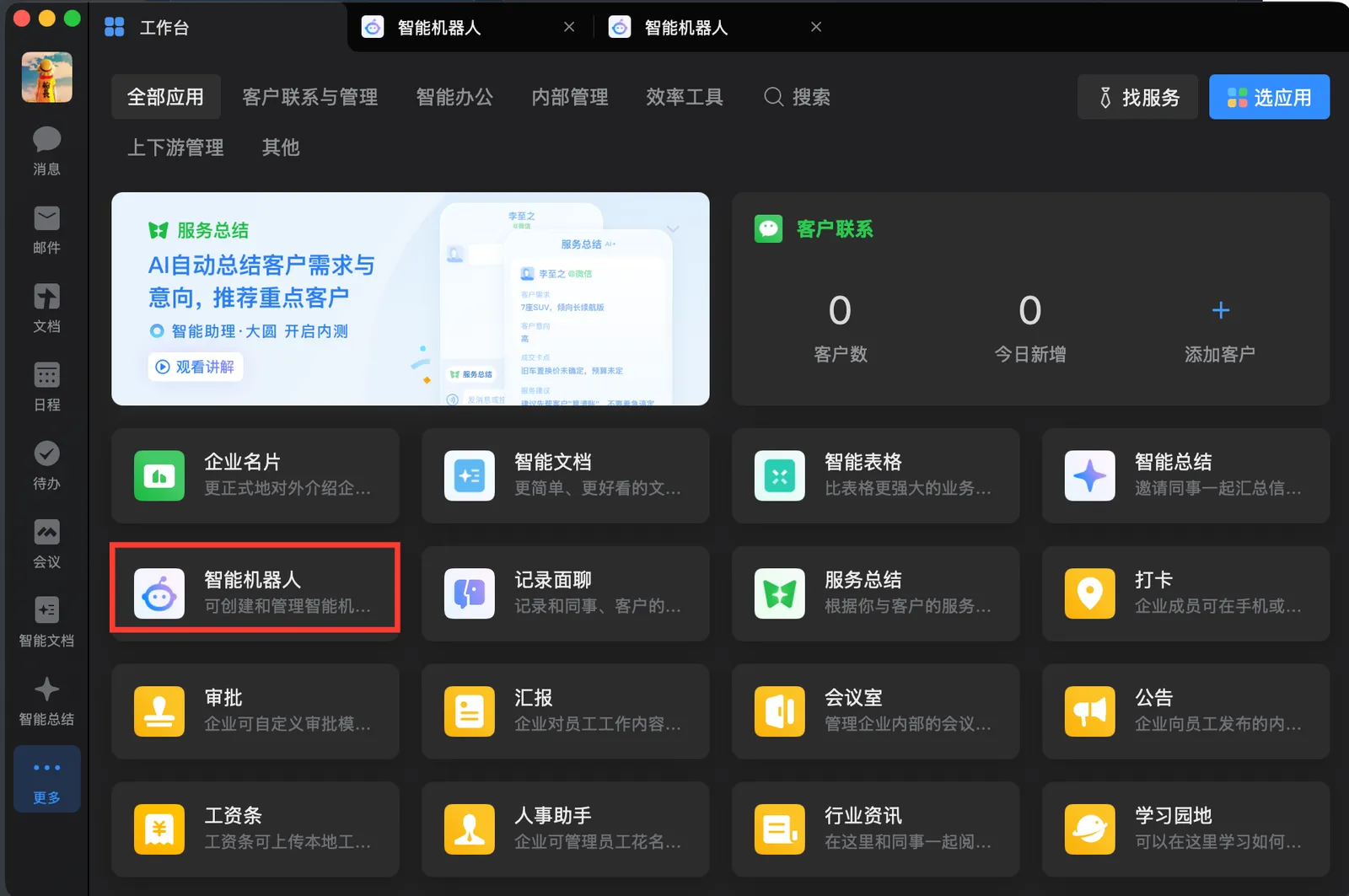
In the WeCom client or admin console, open Workbench and then Smart Bot.
Create the Bot
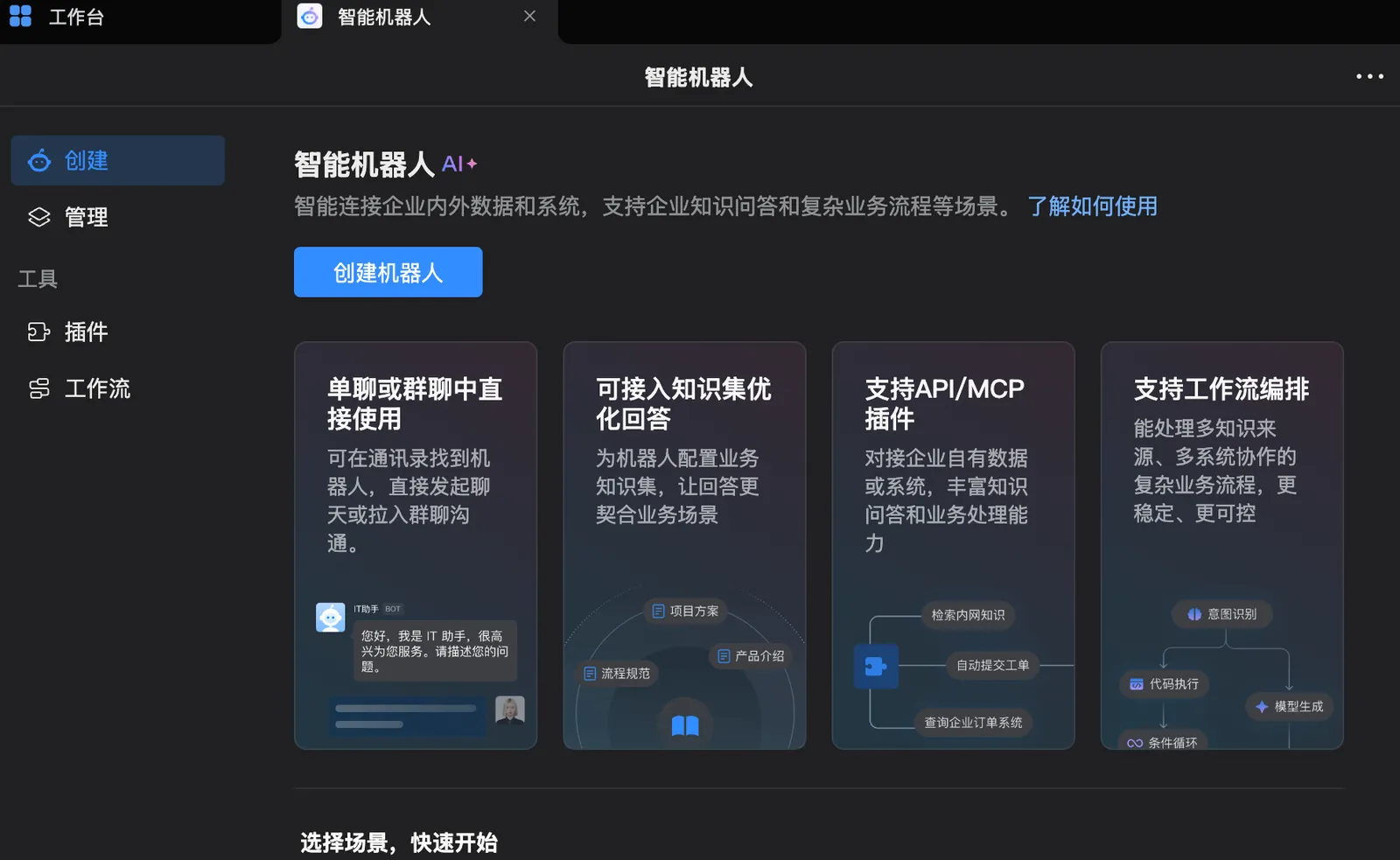
Click create bot to start the bot creation flow.
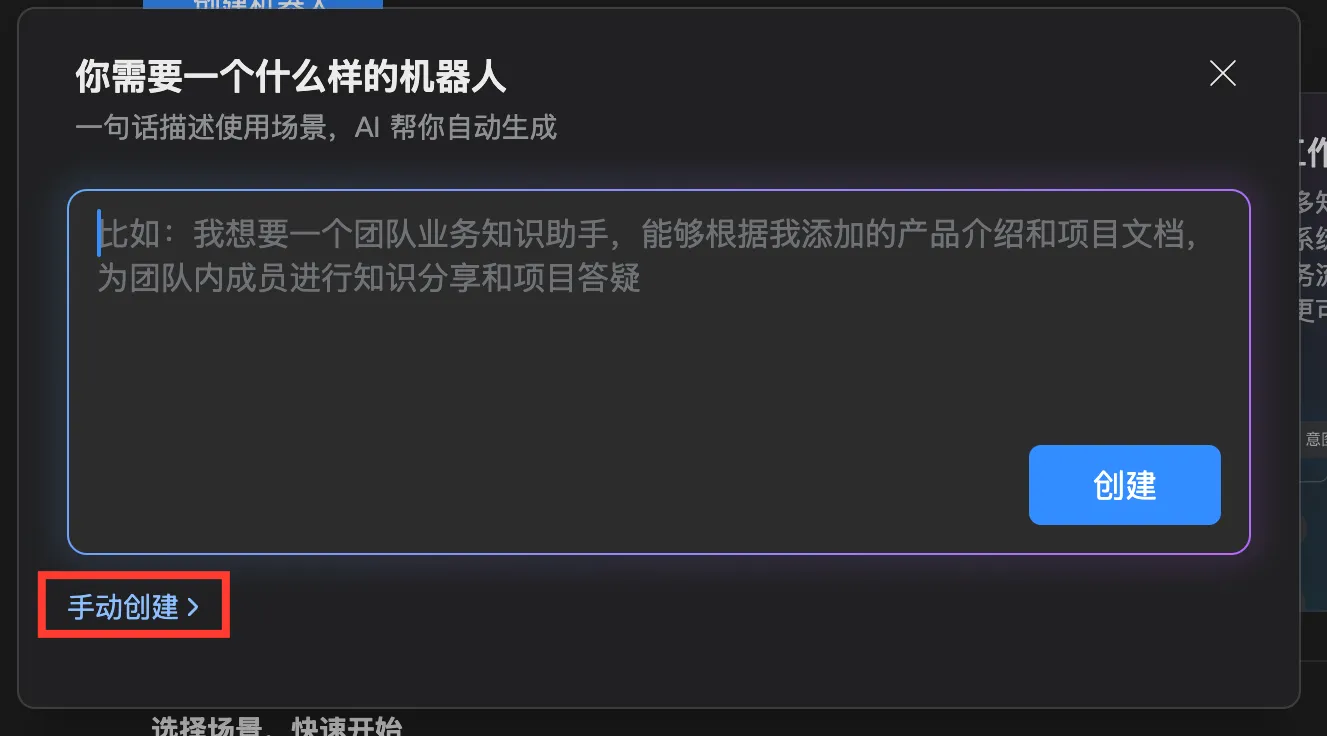
Choose manual creation.
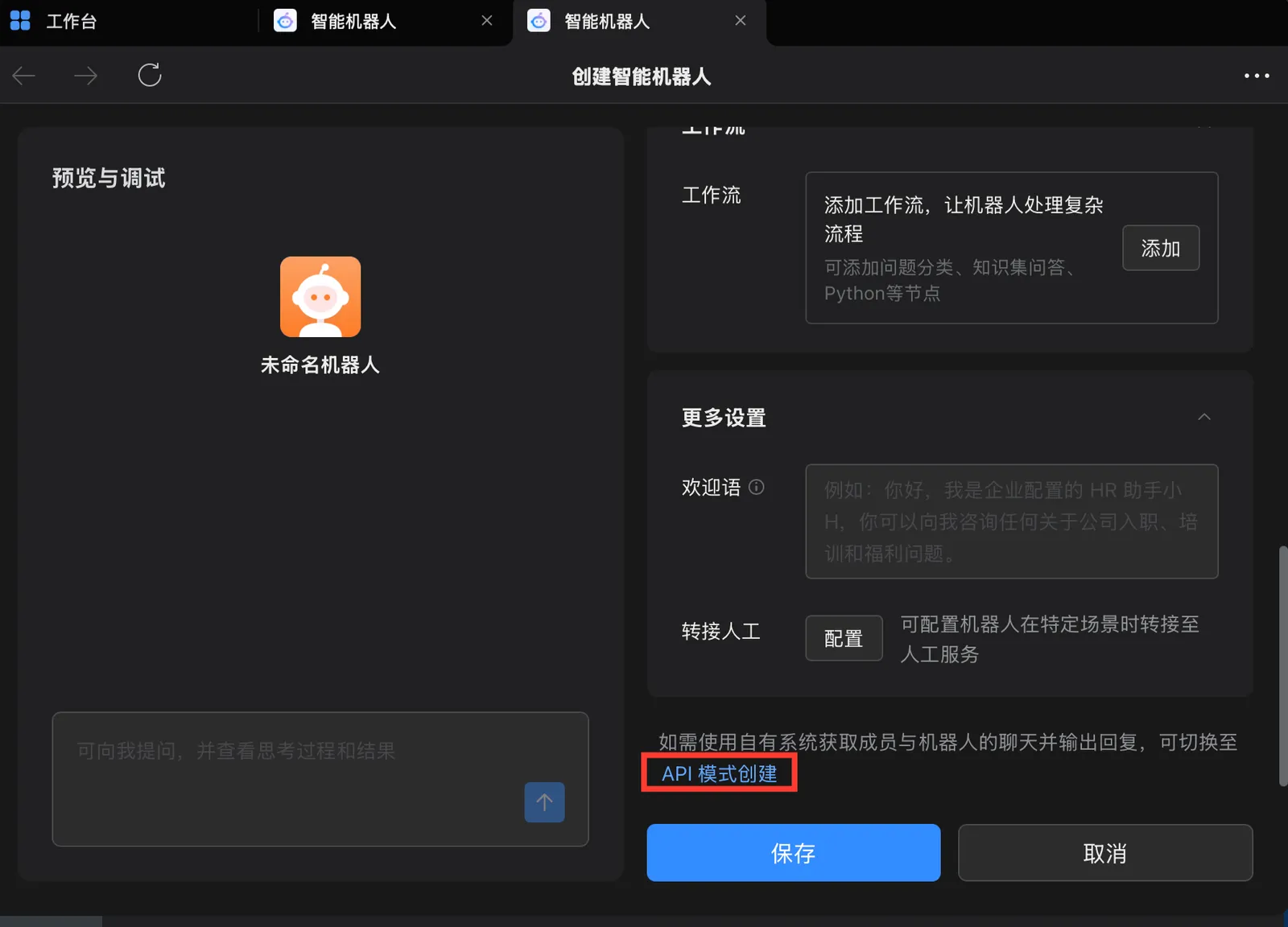
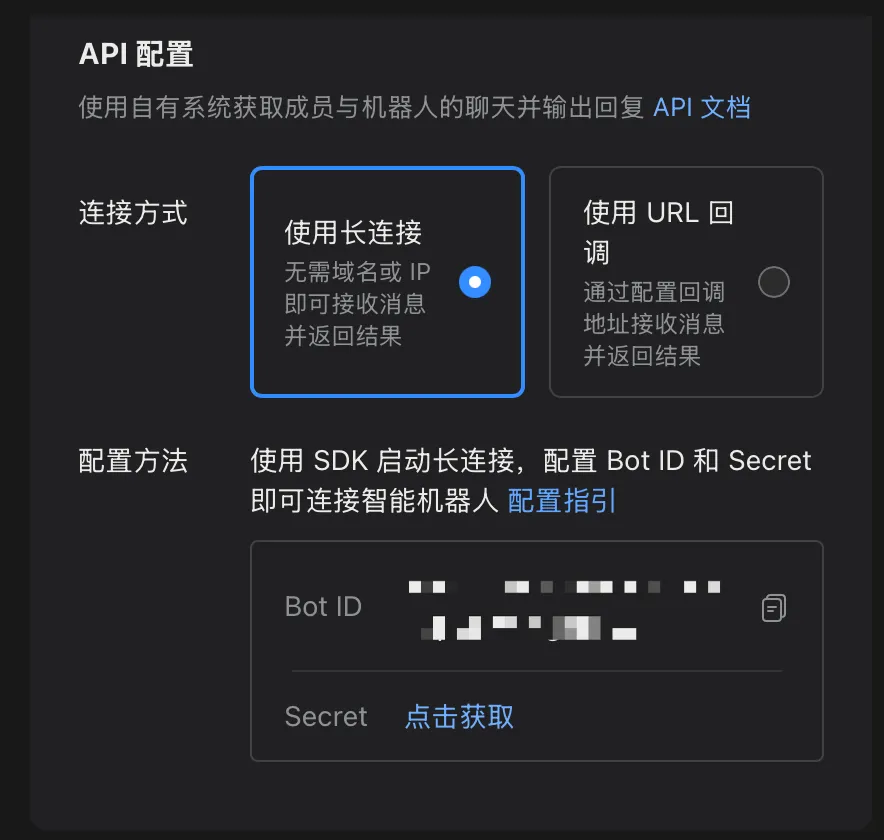
For creation mode, choose API mode. API mode generates the Bot ID and Secret required by AIvis.
Configure Connection and Message Permissions
Use long-connection mode. After the required base configuration, continue to configure the message scope and message permissions the bot can receive.
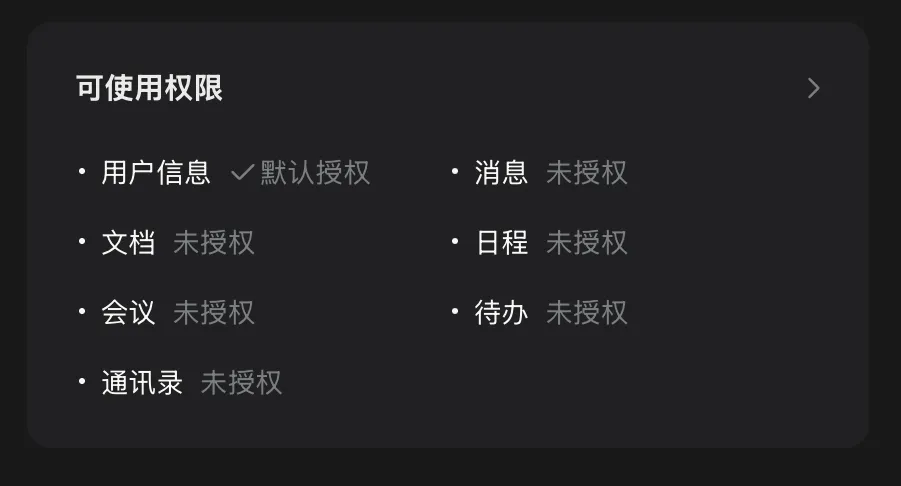
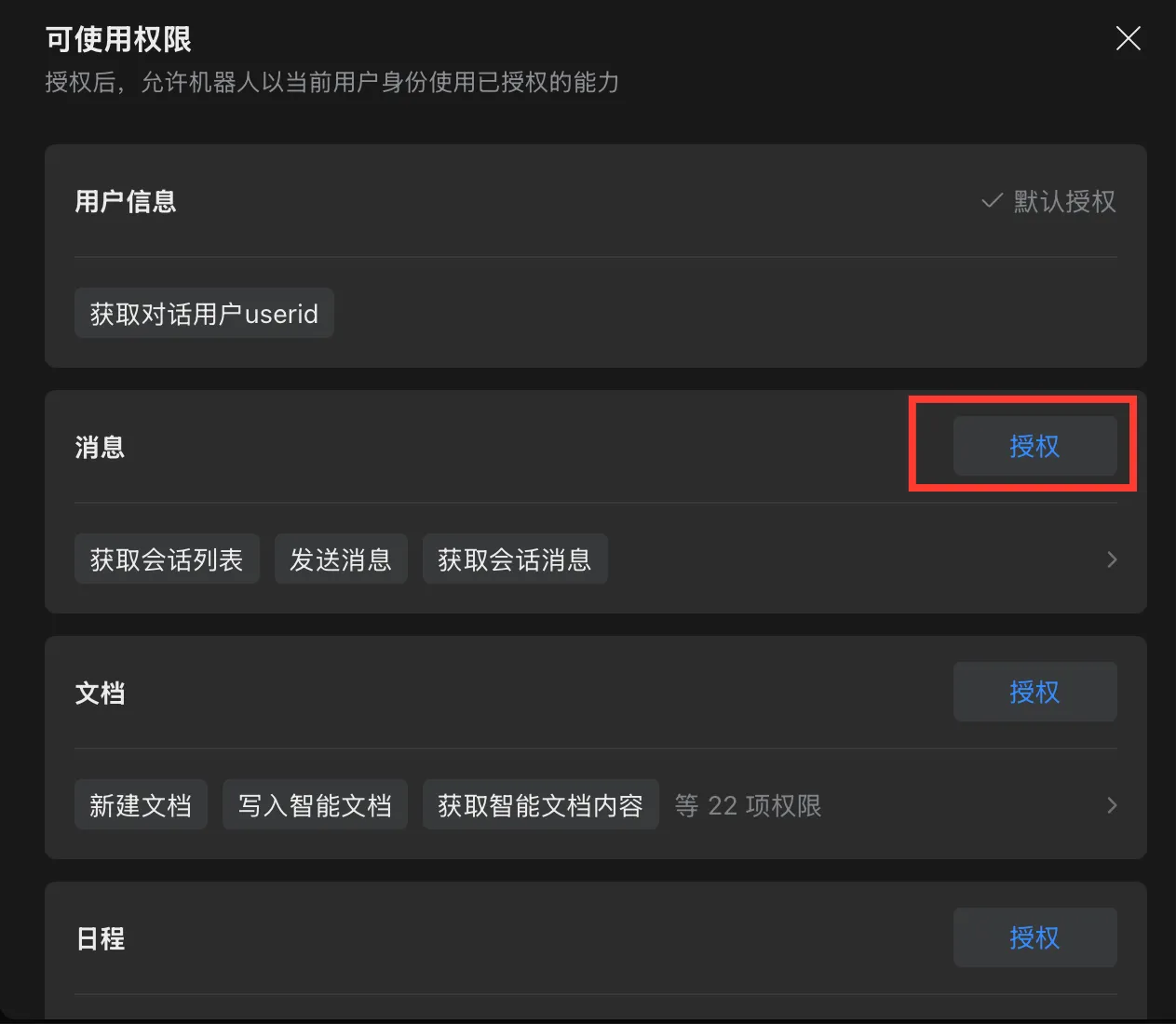
When configuring message permissions:
- Select only the message types the bot actually needs.
- If the bot is only for a limited set of members or groups, do not expand availability to the whole company.
- After changing permissions, save the WeCom configuration and test again from AIvis.
Fill Bot ID and Secret
Copy the Bot ID and Secret generated by WeCom. Return to the AIvis bot configuration page, fill the corresponding fields, and save.
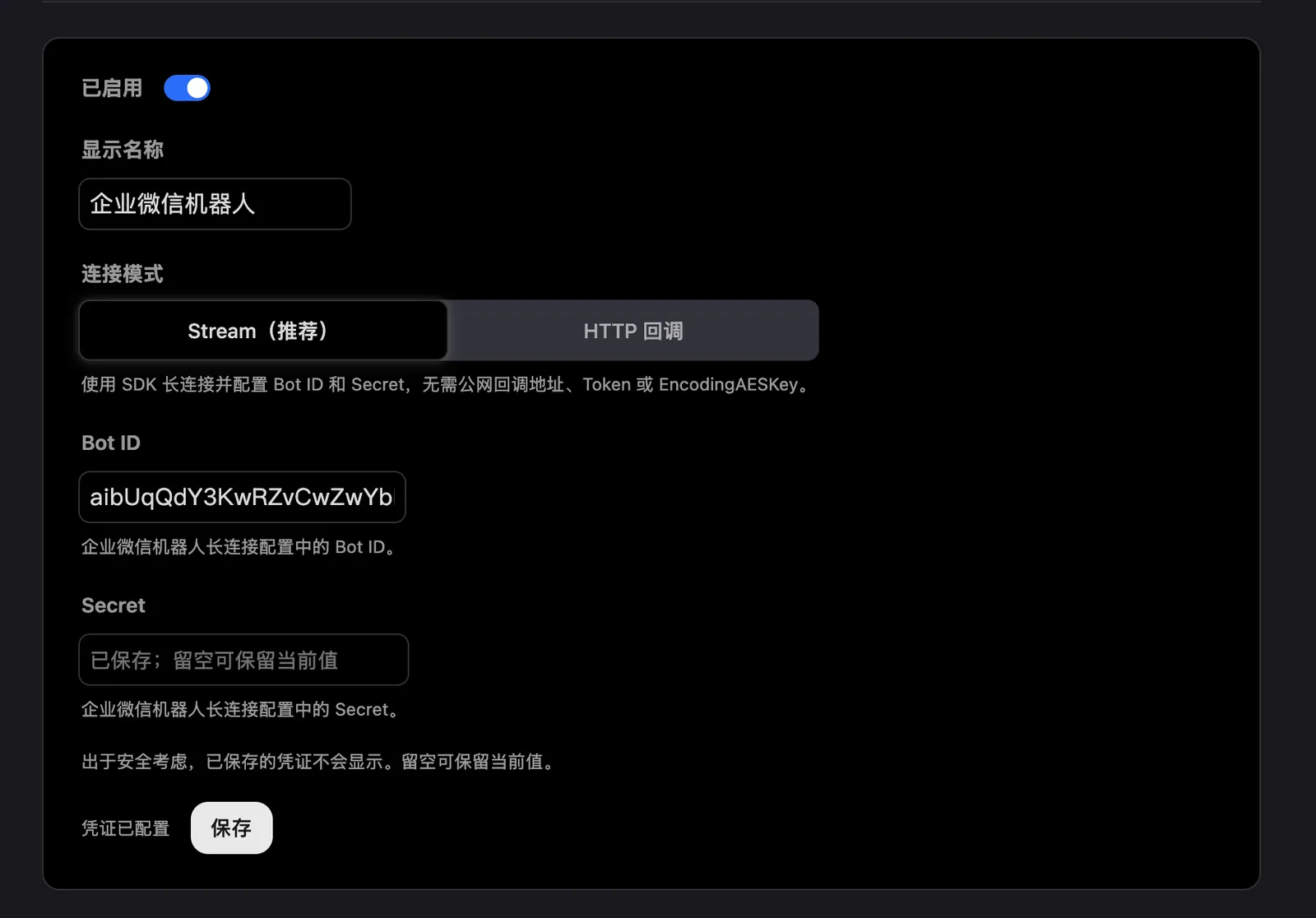
Configuration notes:
Bot IDandSecretmust come from the same WeCom Smart Bot.- Do not put an enterprise ID, group ID, member ID, bot name, or admin account into the Bot ID field.
- If
Secretis regenerated, update the AIvis configuration as well. - If the AIvis page says the value is already saved and you are not changing the secret, the secret field can remain empty.
Test the WeCom Bot
Before testing, confirm in AIvis:
- The bot is enabled.
Bot IDandSecretare saved.- WeCom uses API mode and long-connection mode.
- Message permissions and availability scope match the test scenario.
- The bound Agent, knowledge scope, and tool scope match the test scenario.
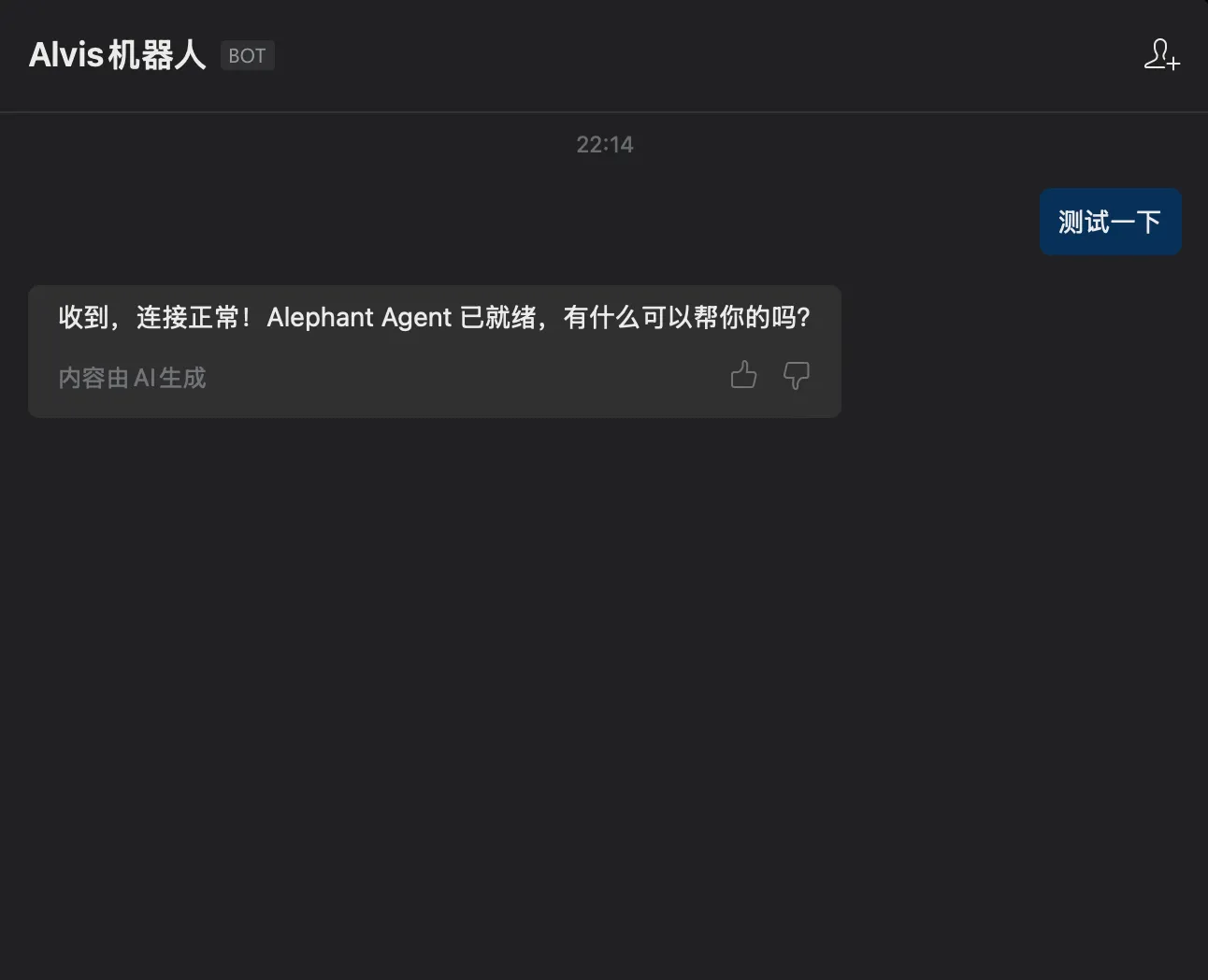
Then open the bot conversation in WeCom and send a test message. When configuration is correct, the bot should receive the message and reply.
Validate Access Boundaries
After the basic reply test, validate governance boundaries:
- Send an allowed question as an authorized member and confirm the bot returns the expected answer.
- Test an unauthorized member, unauthorized group, or a question requiring an inaccessible document set, and confirm sensitive data is not returned.
- Confirm tracing or request logs include source platform, user context, bound Agent, response result, and errors.
- After changing
Secret, message permissions, availability scope, or default Agent, save configuration again and test again.
Troubleshooting
Security and Maintenance
- Store real secrets only in the AIvis configuration page. Do not write them into docs, screenshots, tickets, chat records, or repositories.
- If a secret may have leaked, regenerate it in WeCom and update AIvis immediately.
- Request permissions with the smallest usable scope. Do not enable contacts, message archive, or management permissions for a message-only bot.
- When the bot is no longer needed, disable it in AIvis first, then remove permissions or take the WeCom bot offline.
- In production, record each permission change, secret rotation, connection-mode change, and validation result.
Related Pages
- Agents explains how to configure Agents the bot can call.
- Users, Groups & Roles explains how access boundaries apply to members and groups.
- Tracing explains how to audit bot requests.