

How to Add Tokens
AIvis uses an OpenModels API key to call models. When setting up AIvis for the first time, or when OpenModels balance is insufficient, add credits in OpenModels first and then save the active API key in AIvis Model Credentials.
In this guide, tokens refer to the usable OpenModels account balance consumed by model requests. After adding credits, AIvis still needs a valid OpenModels API key to call models.
1. Register for OpenModels
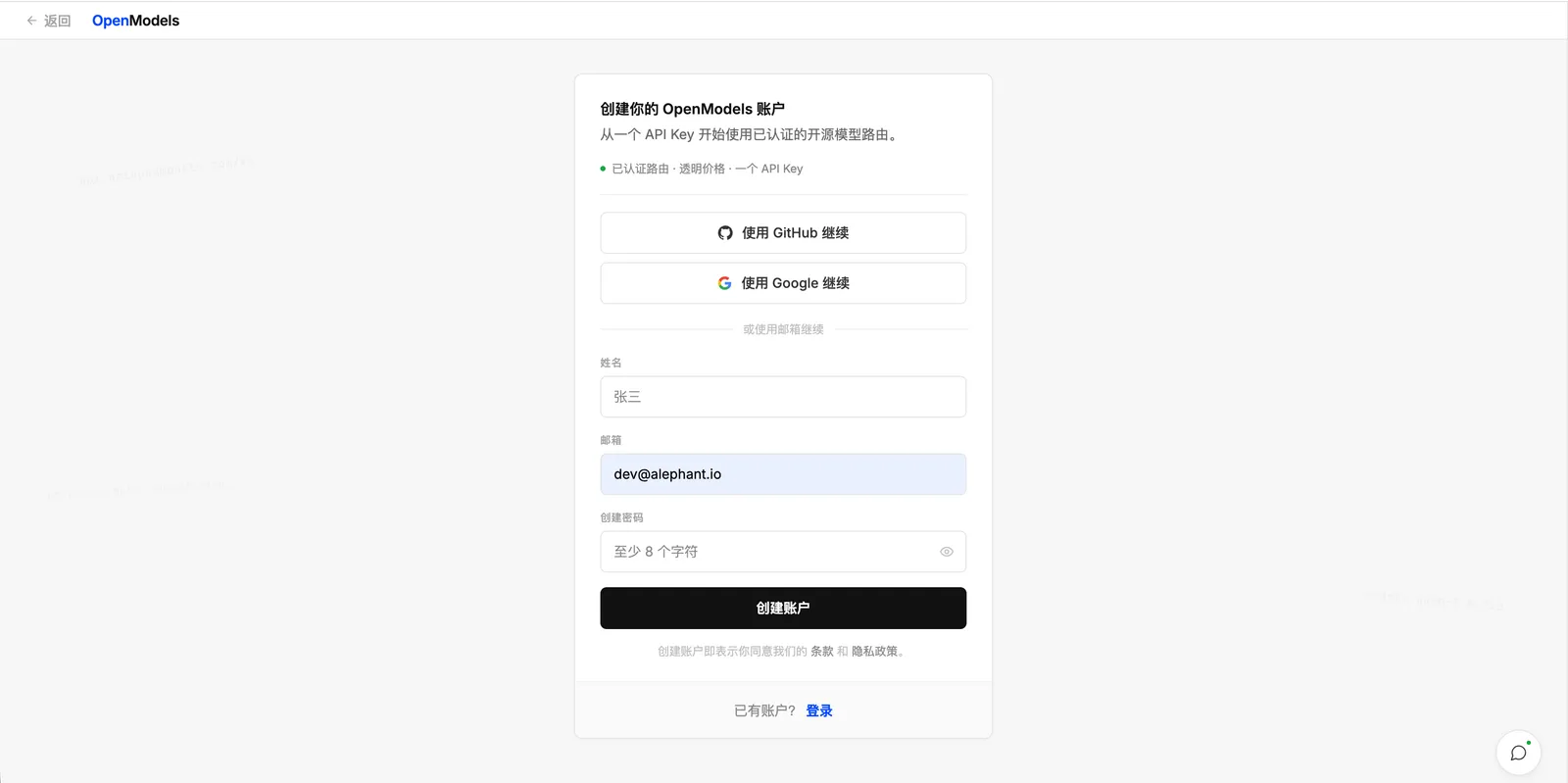
Open the OpenModels sign-in page, then create an account with GitHub, Google, or email. Use an organization-owned account for shared or production AIvis deployments.
2. Add credits
After signing in, open the OpenModels Credits page. Select Add Credits on the left, choose the amount, then select Pay Now.
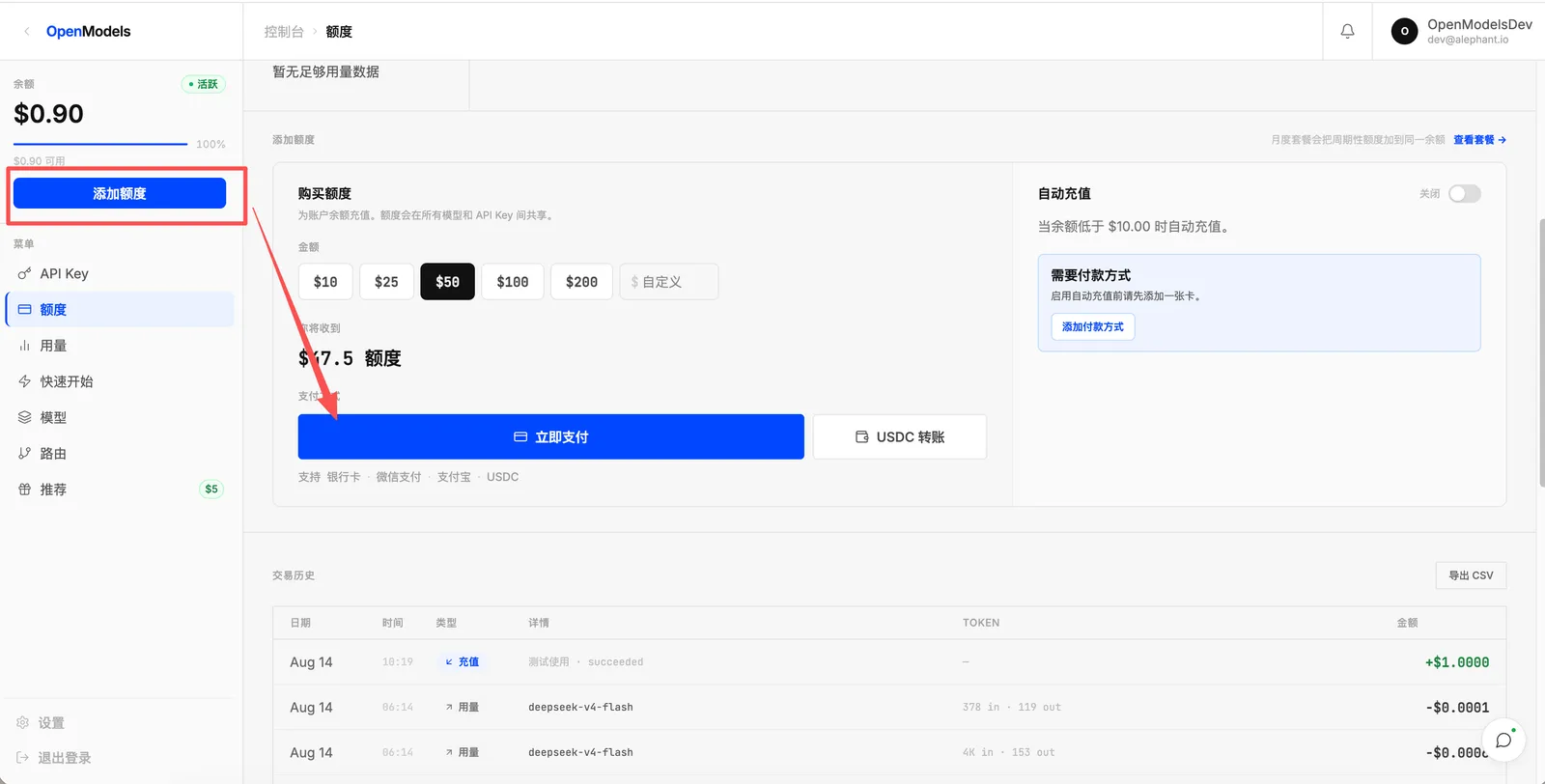
If your organization wants credits to be added automatically when the balance is low, configure auto recharge on the same page. Auto recharge requires a payment method first.
3. Create an API key
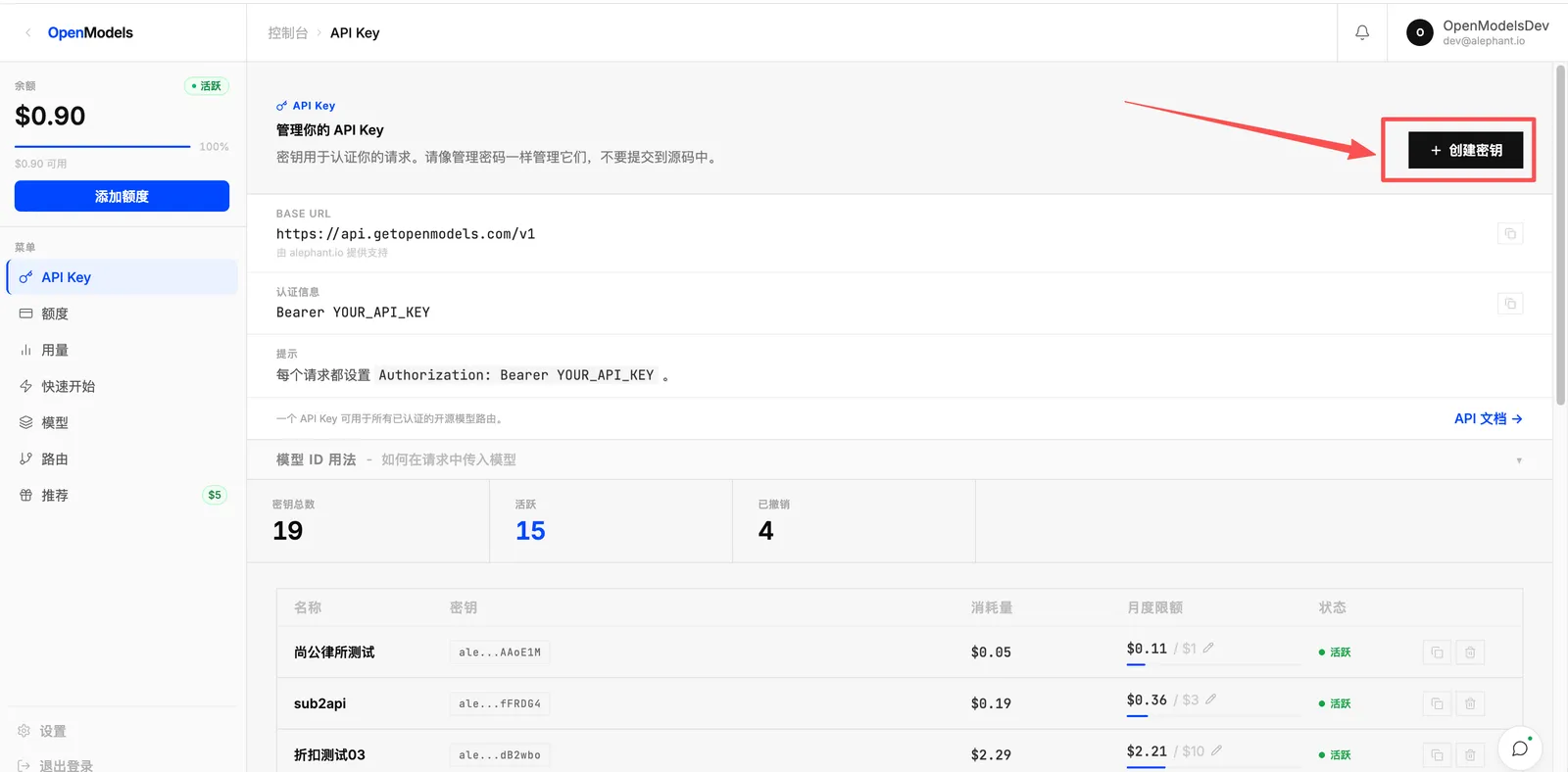
Open the OpenModels API Keys page, then select Create Key in the upper-right corner.
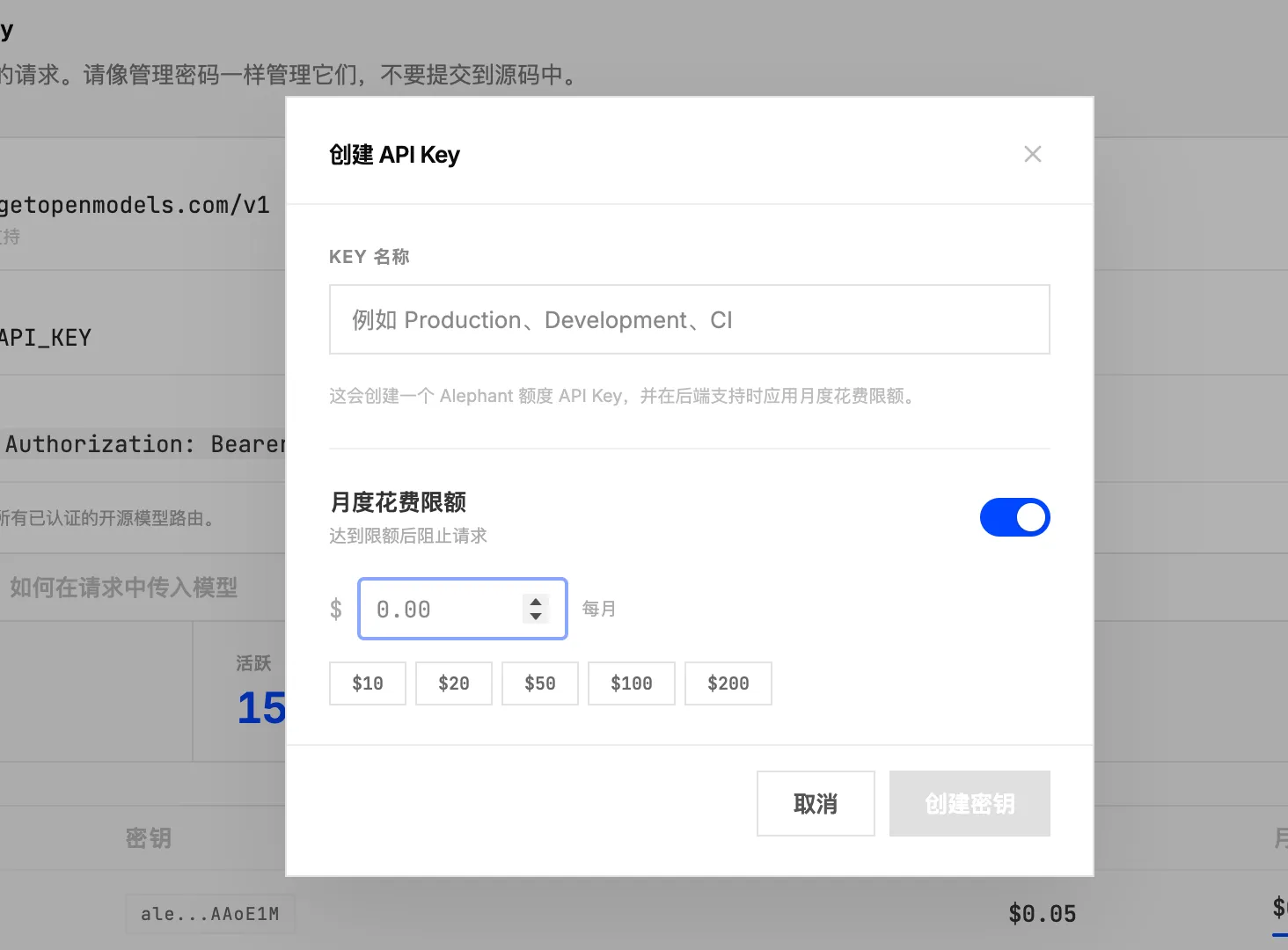
In the dialog, enter a Key name. To control the monthly spend of this key, enable and set the Monthly spend limit, then select Create Key.
Copy the API key immediately and store it in your team’s secret manager. Full API keys are usually shown only once and cannot be viewed again after you close the page.
4. Manage AIvis Model Credentials
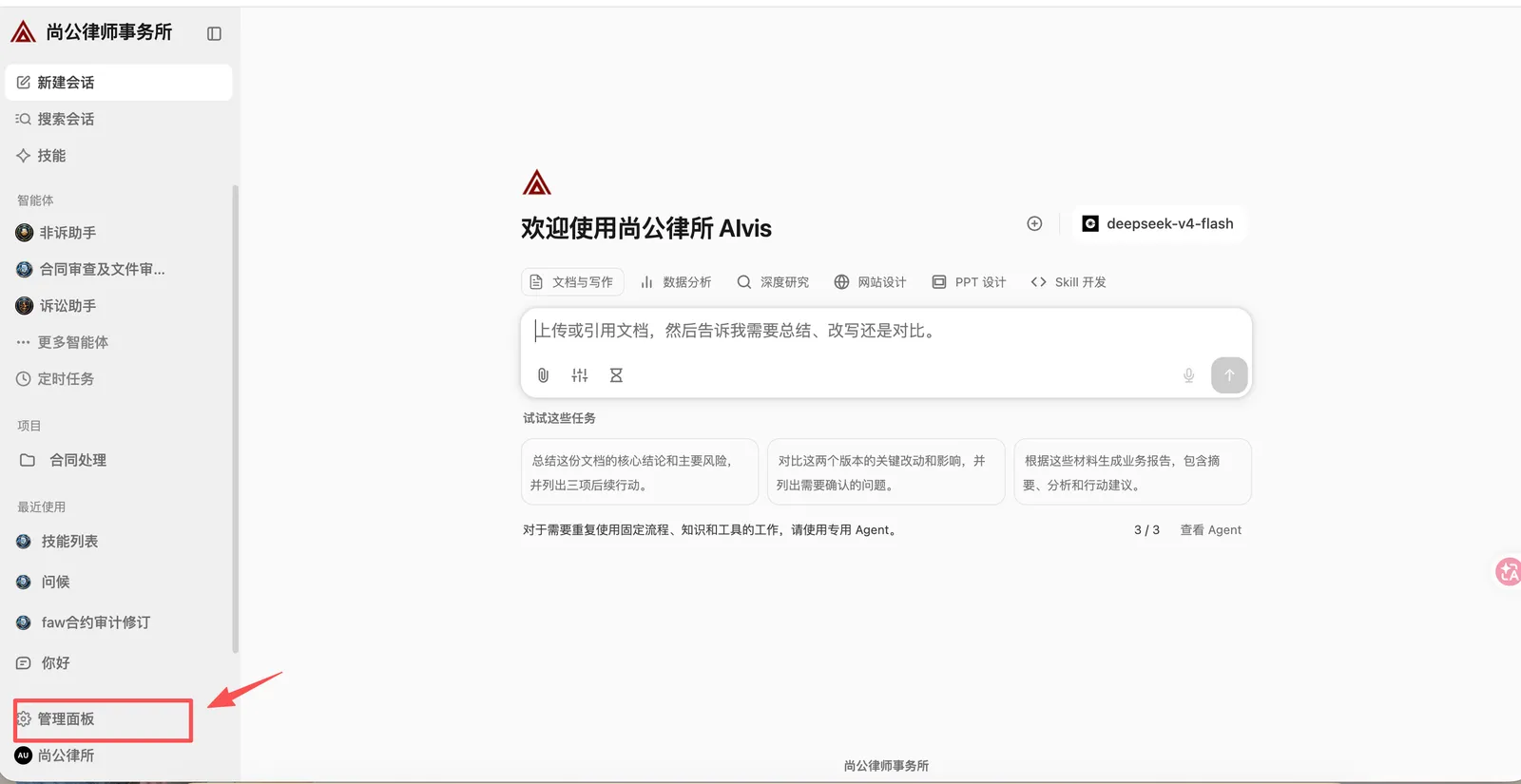
Return to the AIvis home page and select Admin Panel in the lower-left corner.
In the Admin Panel, open Model Credentials from the sidebar. This page manages OpenModels API keys and keeps the model catalog synchronized.
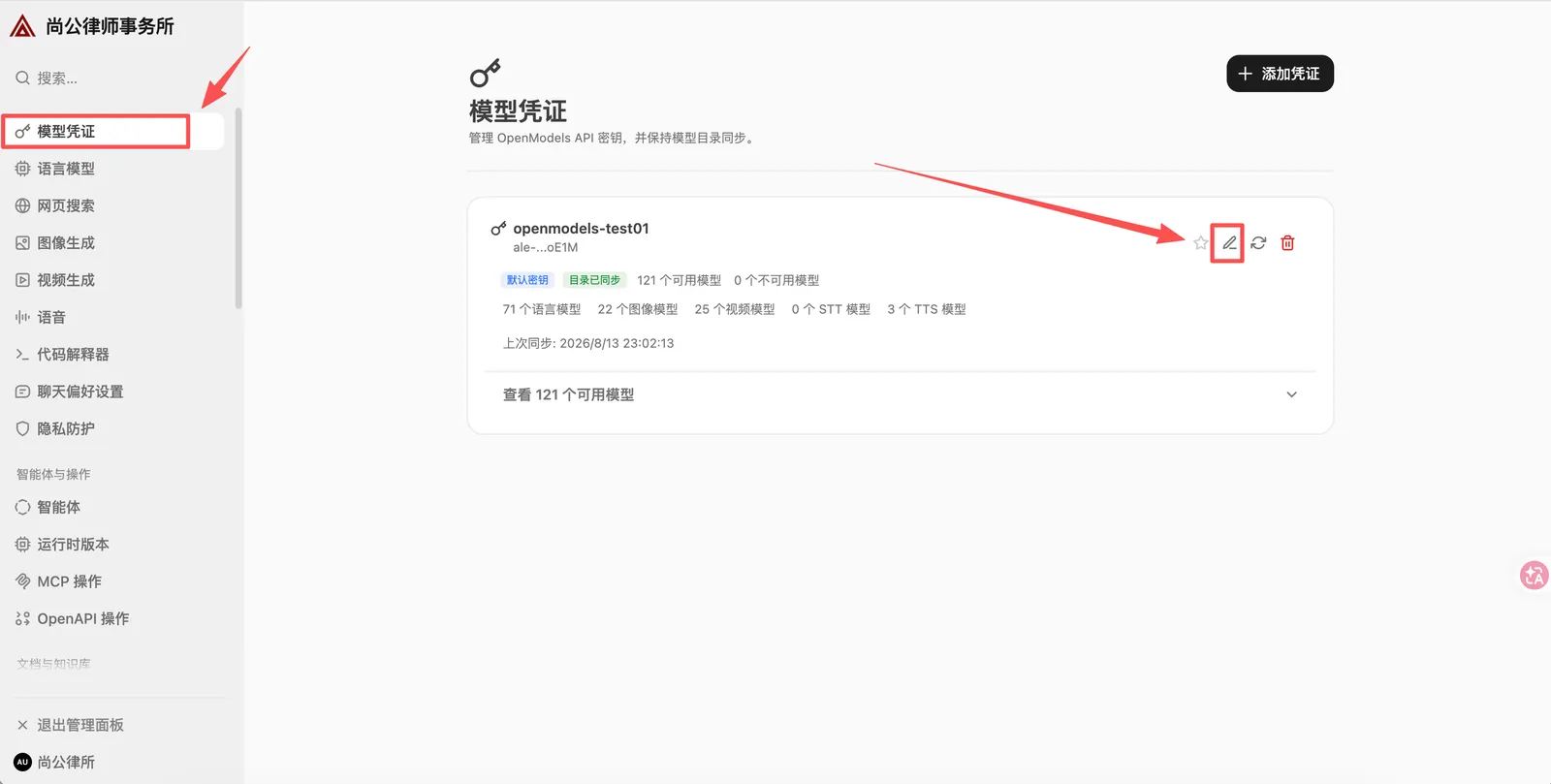
For a first-time OpenModels setup, select Add Credential in the upper-right corner. If an existing credential needs a new key, continue with the next step and edit the credential.
5. Edit the credential
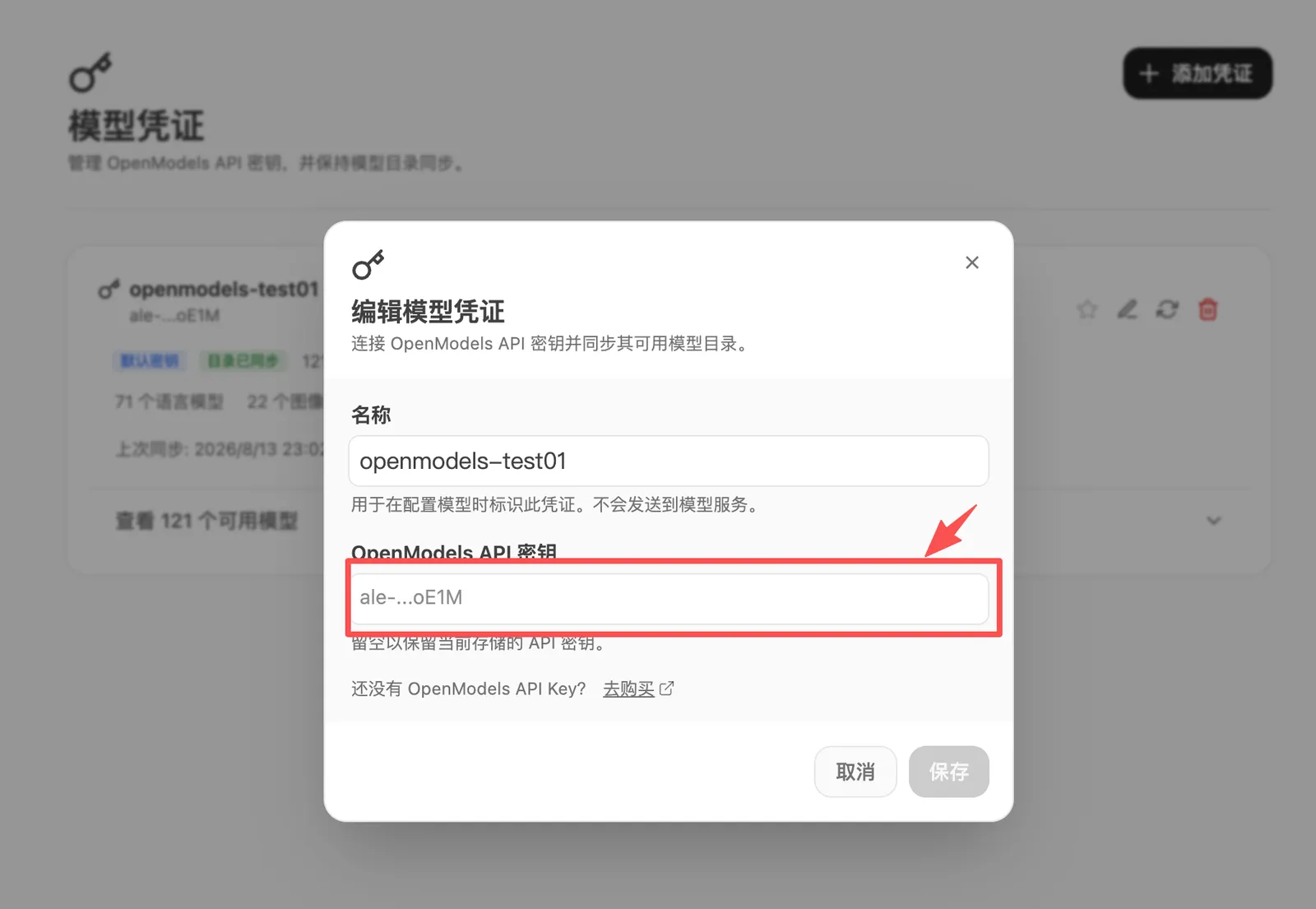
On the credential card, select the edit button to open the Edit Model Credential dialog.
Paste the newly created API key into OpenModels API Key, then select Save. Leaving the field empty keeps the currently stored API key.
After saving, confirm that the credential status is Catalog synced. If synchronization fails, check the OpenModels balance, verify that the API key is active, and confirm that the AIvis deployment can reach the OpenModels API.
Do not paste OpenModels API keys into Agent instructions, chat messages, source control, screenshots, tickets, or shared documents. Store keys only in the protected credential form or your team’s secret manager.
Related pages
- Model Credentials explains how to add, sync, edit, and delete AIvis model credentials.
- Language Models explains how to choose default language models after credential synchronization.