

Model Credentials
Model Credentials is where an Admin connects OpenModels API keys to AIvis. Each saved credential stores one encrypted API key, synchronizes the models that key can access, and exposes those models to the rest of the model configuration flow.
Adding a credential does not automatically make every model the default model. After the catalog is synchronized, use Language Models and the capability pages to choose which models are enabled for chat, image generation, video generation, STT, and TTS.
Before you begin
Get an OpenModels API key
If your organization already has an OpenModels account, ask the account owner for a workspace-approved API key or for access to create one. If you do not have one yet, follow How to Add Tokens to register, add credits, and create a key.
- Open OpenModels.
- Sign in or create an account for the organization that will pay for model usage.
- Purchase or activate the model access your AIvis deployment is allowed to use.
- Create or copy an OpenModels API key from the OpenModels account.
- Store the key in your team’s secret manager until you paste it into AIvis.
Use a production-owned key instead of a personal trial key for shared deployments. The same OpenModels account is also where Admins should check balance or recharge when requests report insufficient balance.
Page overview
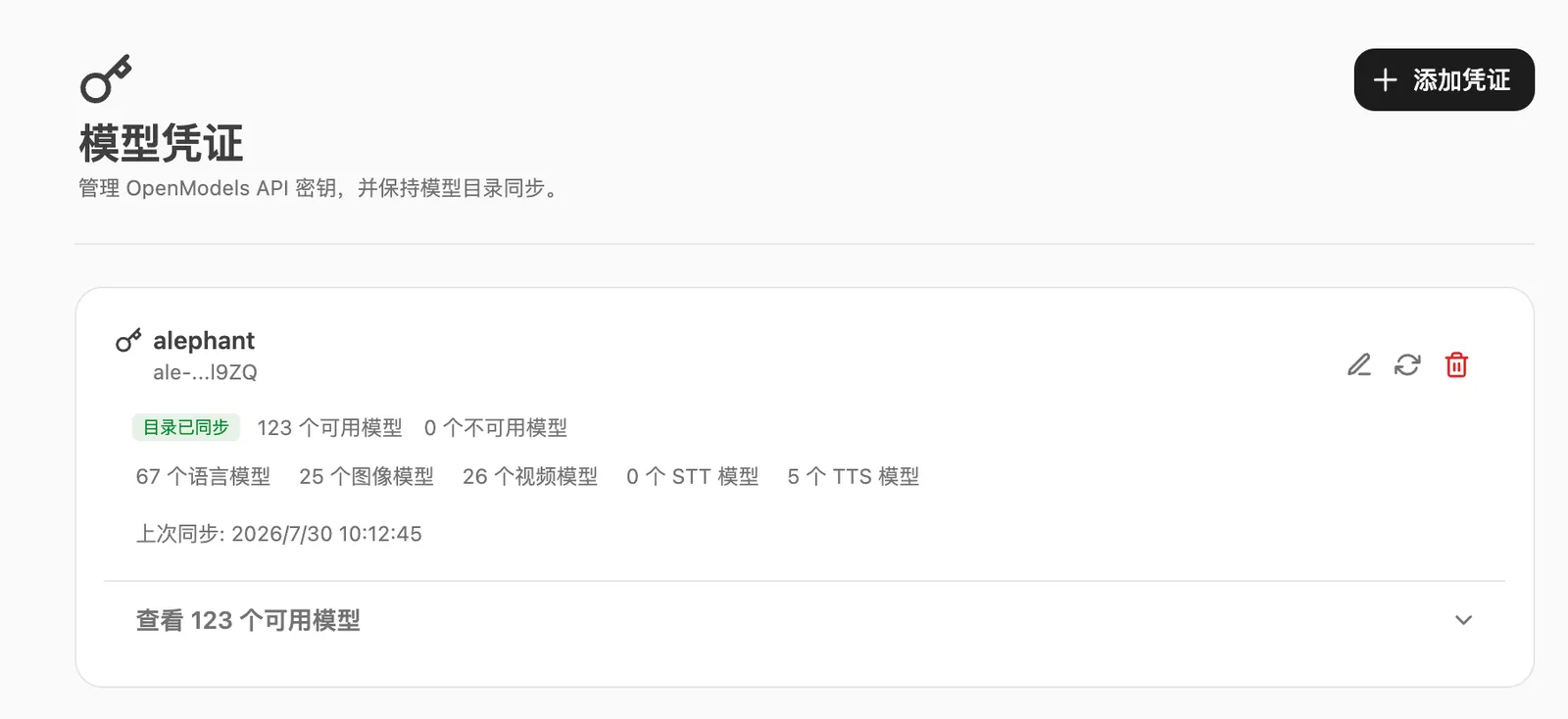
Each credential card summarizes the synchronized catalog for one OpenModels API key.
Add a credential
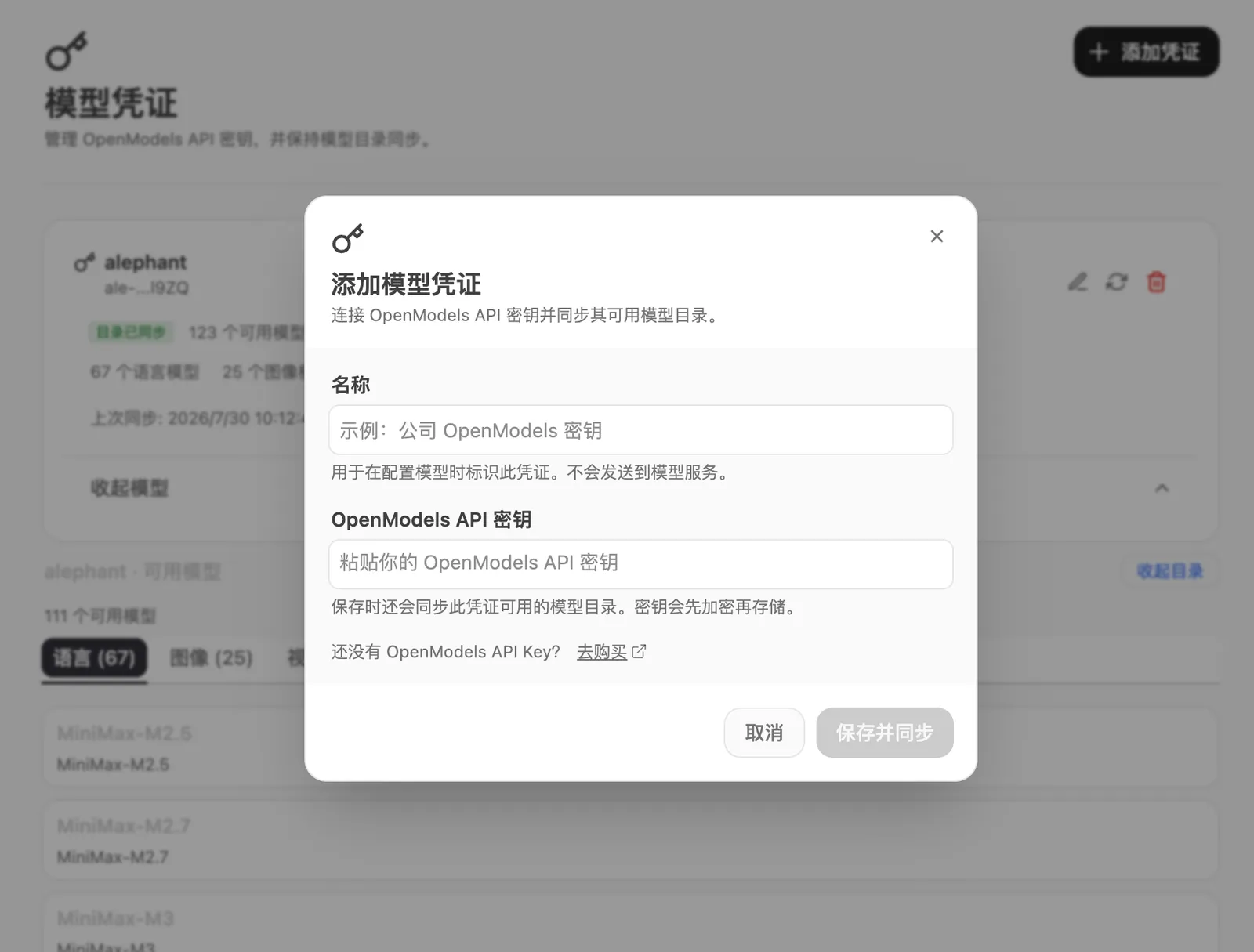
- Sign in as an Admin.
- Open Admin Console > Model Credentials.
- Select Add Credential.
- Enter a clear Name, such as
Company OpenModels keyorProduction OpenModels. - Paste the OpenModels API Key.
- Select Save and sync.
AIvis saves the credential and immediately synchronizes the model catalog available to that key. If synchronization succeeds, the credential card shows Catalog synced and the available model counts. If synchronization fails, reopen the form to verify the key, then use the refresh action after correcting the problem.
The name helps Admins identify the credential later. It is not sent to OpenModels during model requests.
Review available models
Open the credential card by selecting View available models. The expanded catalog groups synchronized models by capability:
- Language for chat, Agents, and text reasoning.
- Image for image generation or image editing models.
- Video for text-to-video, image-to-video, or video editing models.
- STT for speech-to-text models.
- TTS for text-to-speech models.
Use this view to confirm that the expected model families are visible before configuring defaults on other pages.
Refresh, edit, or delete
After editing or refreshing a credential, revisit Language Models, Image Generation, Video Generation, and Voice if any default model or capability binding depends on the changed catalog.
Troubleshooting
Security practices
Do not paste OpenModels API keys into Agent instructions, chat messages, source control, screenshots, tickets, or shared documents. Store them only through the Model Credentials form.
Use separate credentials for different environments or access boundaries. Rotate keys according to your organization’s security process, then refresh the catalog and verify that the expected model defaults still work.
Related pages
- Language Models explains how to choose catalog models after access is configured.
- How to Add Tokens explains how to register for OpenModels, add credits, create an API key, and update the AIvis credential.
- Generation & Chat Capabilities covers capability-specific configuration and verification.
- Image Generation, Video Generation, and Voice use the synchronized catalog for capability-specific defaults.