

DingTalk
The DingTalk connector brings approved DingTalk Wiki nodes, individual DingTalk documents, and DingDrive folders into AIvis retrieval. It reads only the scopes explicitly entered by an administrator and does not scan every DingTalk object visible to the app or operator account.
Use cases
What it indexes
The connector supports at most 100 total scopes and rejects duplicate or overlapping scopes. It does not index DingTalk chats, tasks, approvals, calendars, contacts, or resources that were not explicitly listed.
Prerequisites
- Create an internal DingTalk app and prepare its AppKey and AppSecret.
- Identify an operator UnionId that can read the approved resources. Do not enter a userId, phone number, email, or display name.
- Grant the app the required read-only API permissions and resource authorization.
- Collect the exact Wiki, document, or DingDrive scope IDs to index.
- Decide the AIvis access group before indexing private content.
- Allow the AIvis backend to reach
api.dingtalk.comand authorized DingDrive downloads.
DingTalk API permissions, resource authorization, and app availability are separate checks. A valid credential does not prove that every target Wiki, document, or folder has been authorized to the app.
Where to get configuration values
Prepare the DingTalk app
- In the DingTalk developer console, open App Development > DingTalk Apps, then select Create App to create an internal enterprise app.
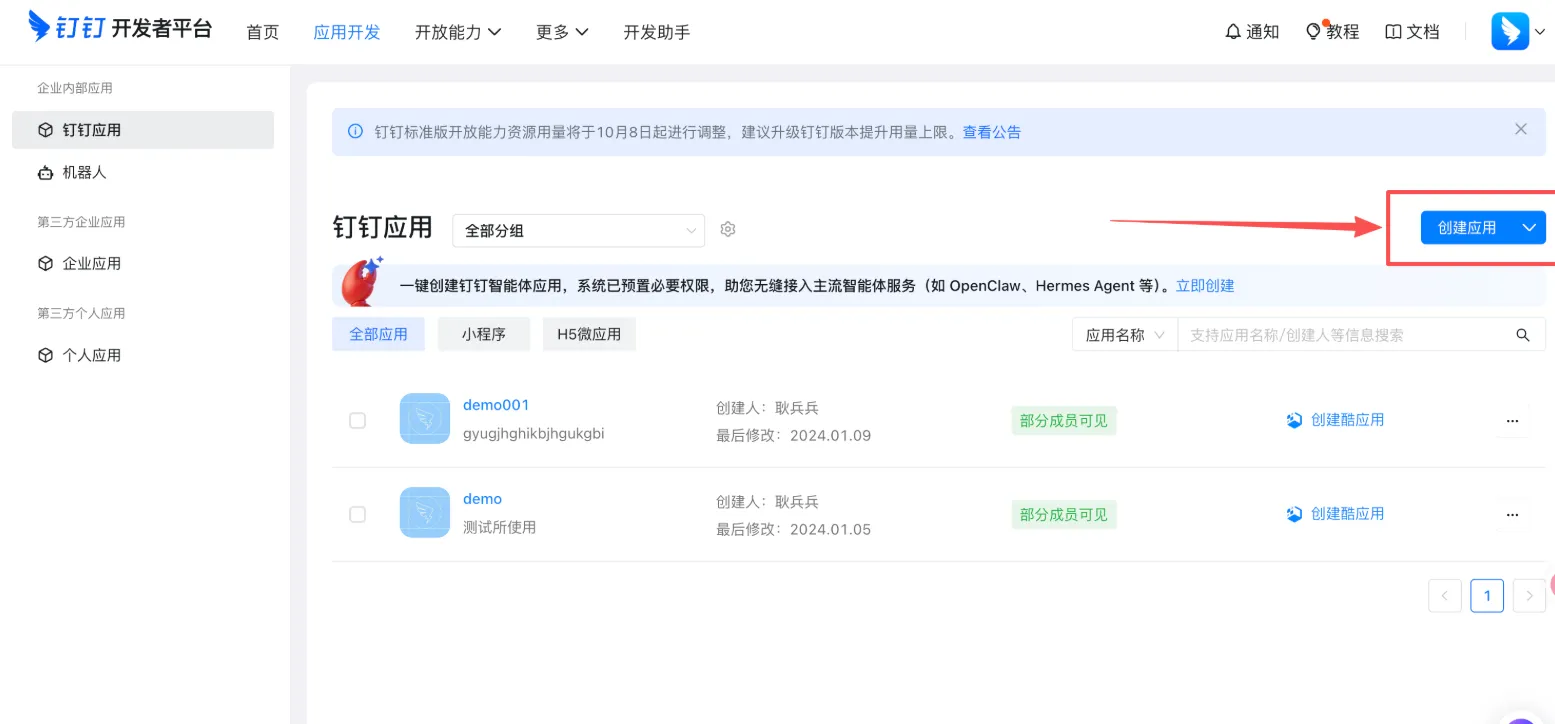
- Open the app and copy
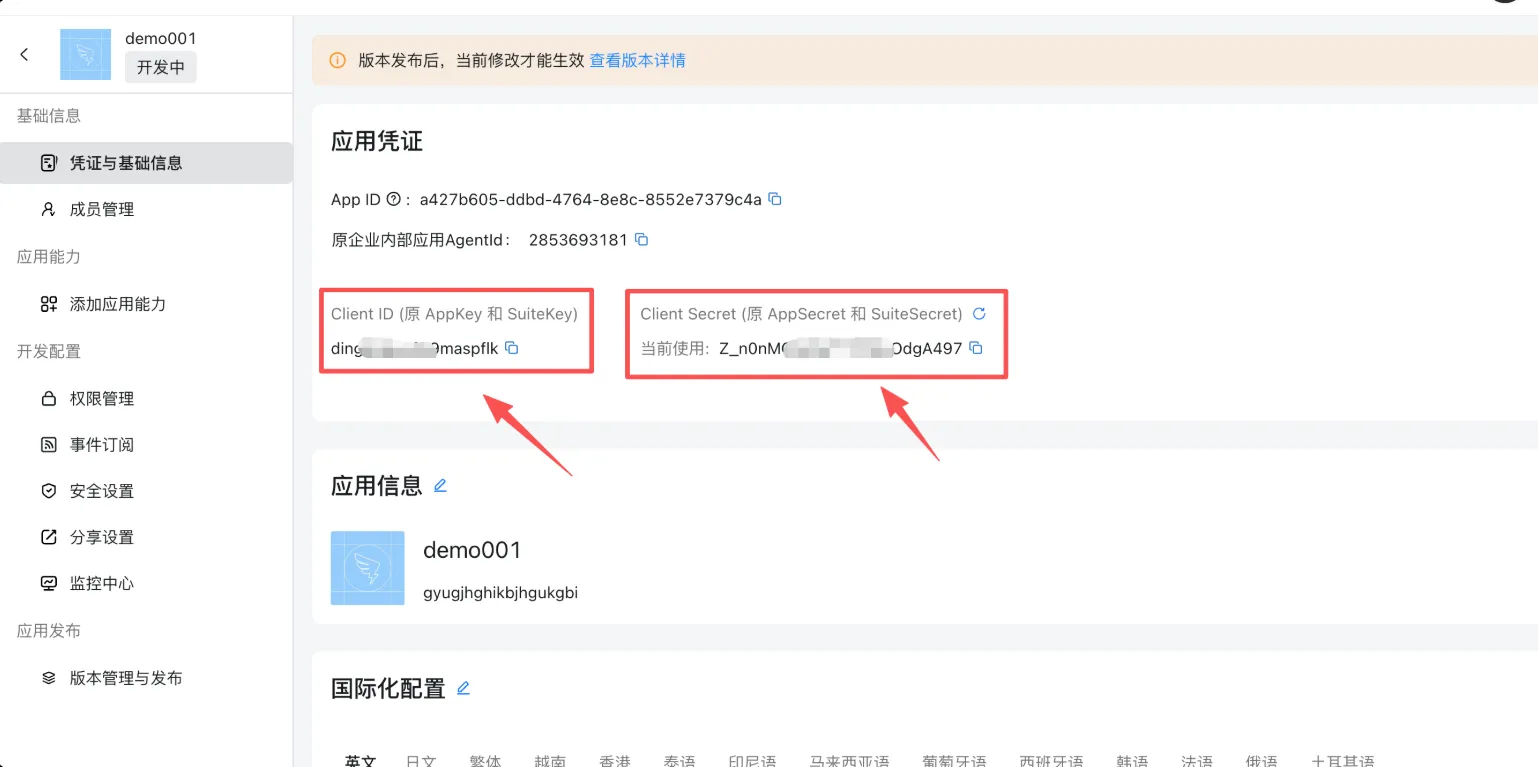
Client ID(formerly AppKey) andClient Secret(formerly AppSecret) from Credentials and Basic Info. In AIvis, these values are still entered as DingTalk AppKey and DingTalk AppSecret.
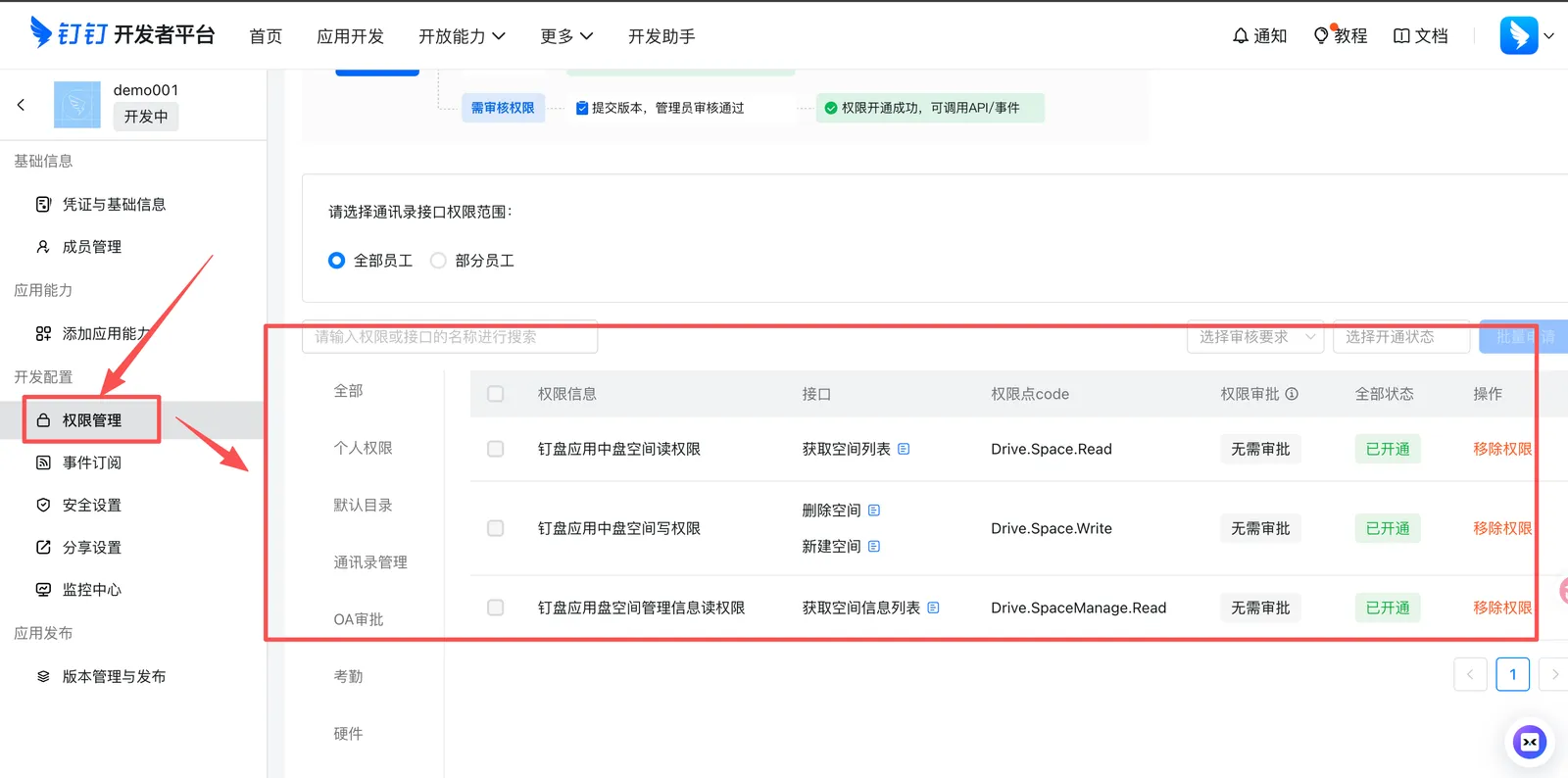
- In Permission Management, enable the read permissions required by the resources this connector will index. Grant DingDrive, document, or Wiki permissions only for the actual indexing scope.
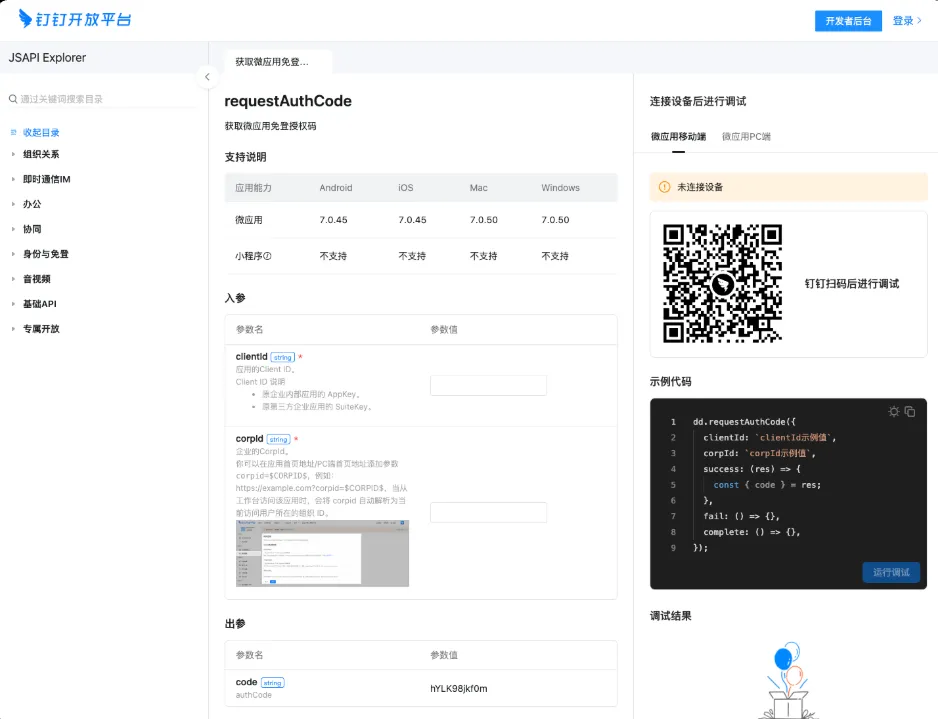
- If you need to identify the operator, use DingTalk API Explorer to debug
requestAuthCodeand get an authorization code for the current signed-in user.
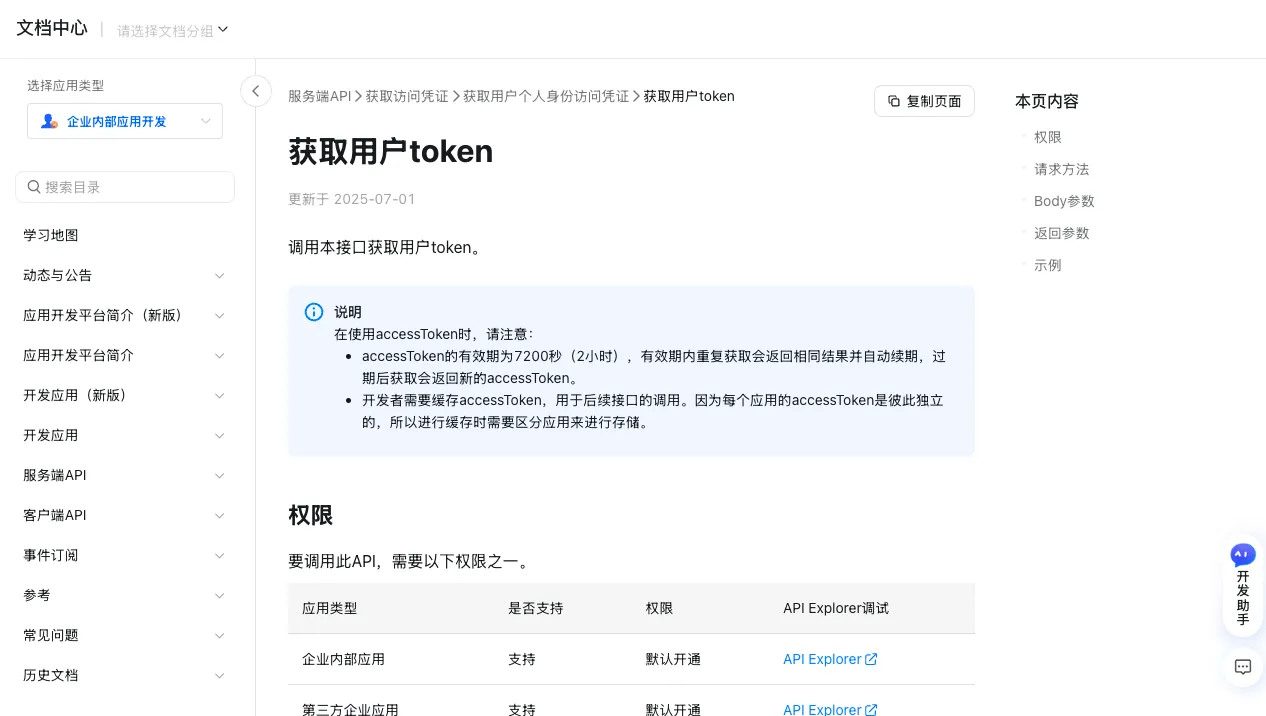
- Follow the DingTalk Open Platform “Get user token” guide to exchange the authorization code for a user access token.
- Confirm
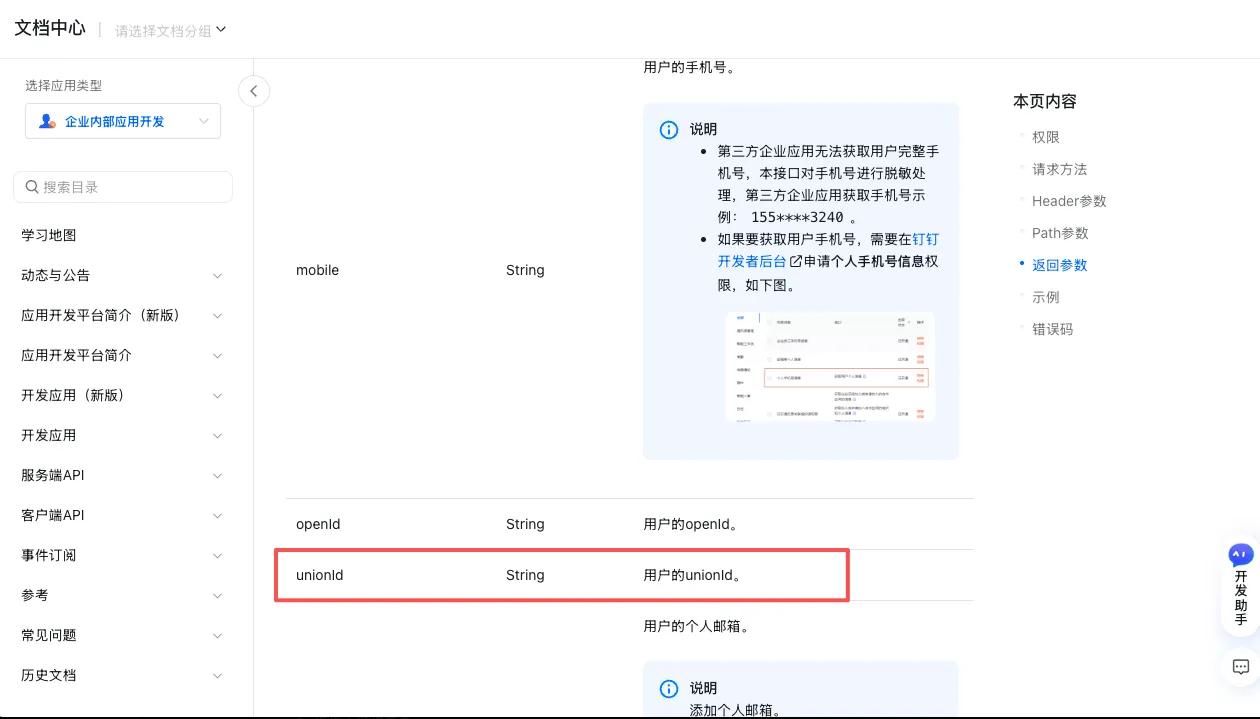
unionIdin the user information response. Enter this value as Operator UnionId in AIvis, not a userId, phone number, email, or display name.
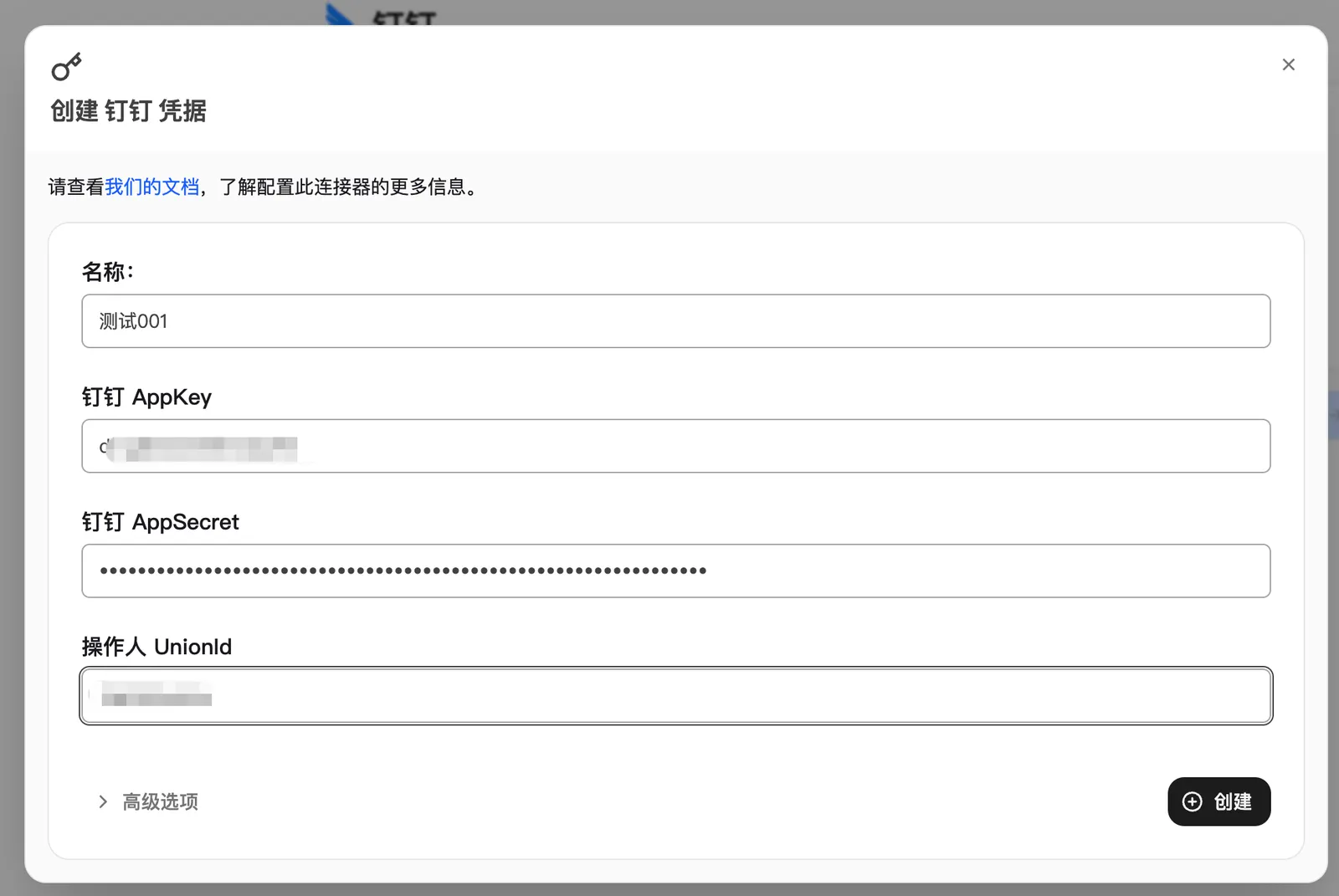
- Return to AIvis and create the DingTalk credential with a name, DingTalk AppKey, DingTalk AppSecret, and Operator UnionId.
Configure in AIvis
In the Admin panel, open Connectors, select DingTalk, create or choose a DingTalk credential, and then enter the explicit scopes to index.
Enter at least one scope type. Start with a minimal test scope, validate search results, then expand.
Sync behavior
The standard Admin-created DingTalk connector runs as a polling connector with checkpoint resume. It processes scopes in order, builds a stable inventory for each scope, and emits hierarchy nodes and documents from that inventory.
Permissions
The DingTalk app and operator UnionId determine what AIvis can ingest, but this connector does not synchronize DingTalk departments, groups, document members, or DingDrive ACLs into AIvis.
Use AIvis Private groups for internal or project content. Use Public only when every eligible AIvis user may search every indexed result. DingTalk is not available as an auto permission-sync source.
Verify
- Create a connector with one test Wiki node, document, or DingDrive folder.
- Run indexing and confirm token acquisition and scope validation pass.
- Search known titles, body text, and file names.
- Search resources outside the configured scopes and confirm they are absent.
- Test both an assigned AIvis group member and an outside user.
- Modify a test document and confirm the next sync updates the result.
Troubleshooting
Security and maintenance
- Use separate DingTalk apps and secrets for production, test, and demo environments.
- Store real secrets only in protected AIvis credential fields.
- Review scopes, operator UnionId, app permissions, resource authorization, and AIvis access groups regularly.
- Rotate credentials or replace the operator if ownership changes or a secret may have leaked.
- Disable the connector before removing DingTalk permissions for retired scopes.
Official references
- DingTalk developer tutorial: create an app and view Client ID / Client Secret
- DingTalk developer guide: get an app Access Token