

Tencent Cloud COS
Use the Tencent Cloud COS connector to index approved files from object storage. Create one connector per business knowledge directory, and restrict the Tencent Cloud CAM permission to the exact bucket and prefix.
Use cases
Prepare Tencent Cloud
- Sign in to the Tencent Cloud console.
- Open Cloud Access Management (CAM) → Users → User List.
- Create a sub-user dedicated to this deployment, such as
aivis-cos-reader. Do not use a root-account key. - Open the sub-user detail page, go to API Key, and click Create key.
- Save the
SecretIdandSecretKeyafter creation:- Put
SecretIdin the AIvis credential’s Key ID field. - Put
SecretKeyin the AIvis credential’s Secret key field. - Leave Session Token empty when using a permanent key.
- Put
Tencent Cloud disabled later SecretKey lookup starting on November 30, 2023. A newly created key shows the SecretKey only at creation time. If it was not saved, create a new key, verify it, then delete or disable the old key. See Tencent Cloud sub-account access key management.
COS files and permissions
In the COS console:
- Open the target bucket, such as
aivis-cos-test-1250000000. - Create the
knowledge/folder in File List. - Upload the PDFs, Word documents, Markdown files, TXT files, and other approved documents to that folder.
- Grant the CAM sub-user read-only access limited to
aivis-cos-test-1250000000/knowledge/*.
At minimum, allow:
Do not grant write or delete permissions. If the bucket is still Public read/write, change it to Private read/write before creating or enabling the connector.
Credential fields
Create a Tencent Cloud COS credential in AIvis:
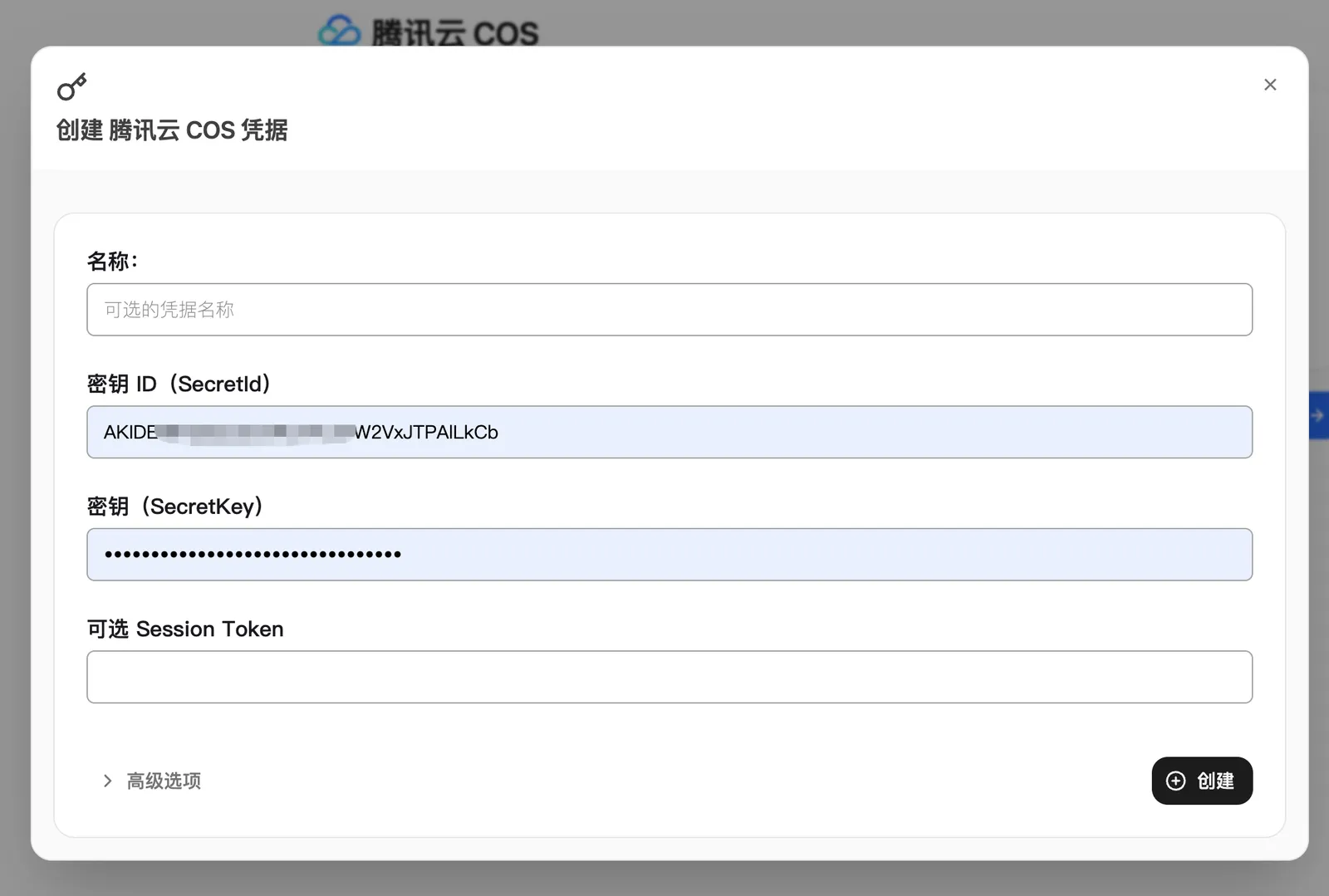
Do not enter a cli_... Client ID from another system, and do not send the SecretKey to anyone or commit it to source control.
Connector example
This example configures a test connector that indexes only the knowledge/ directory:
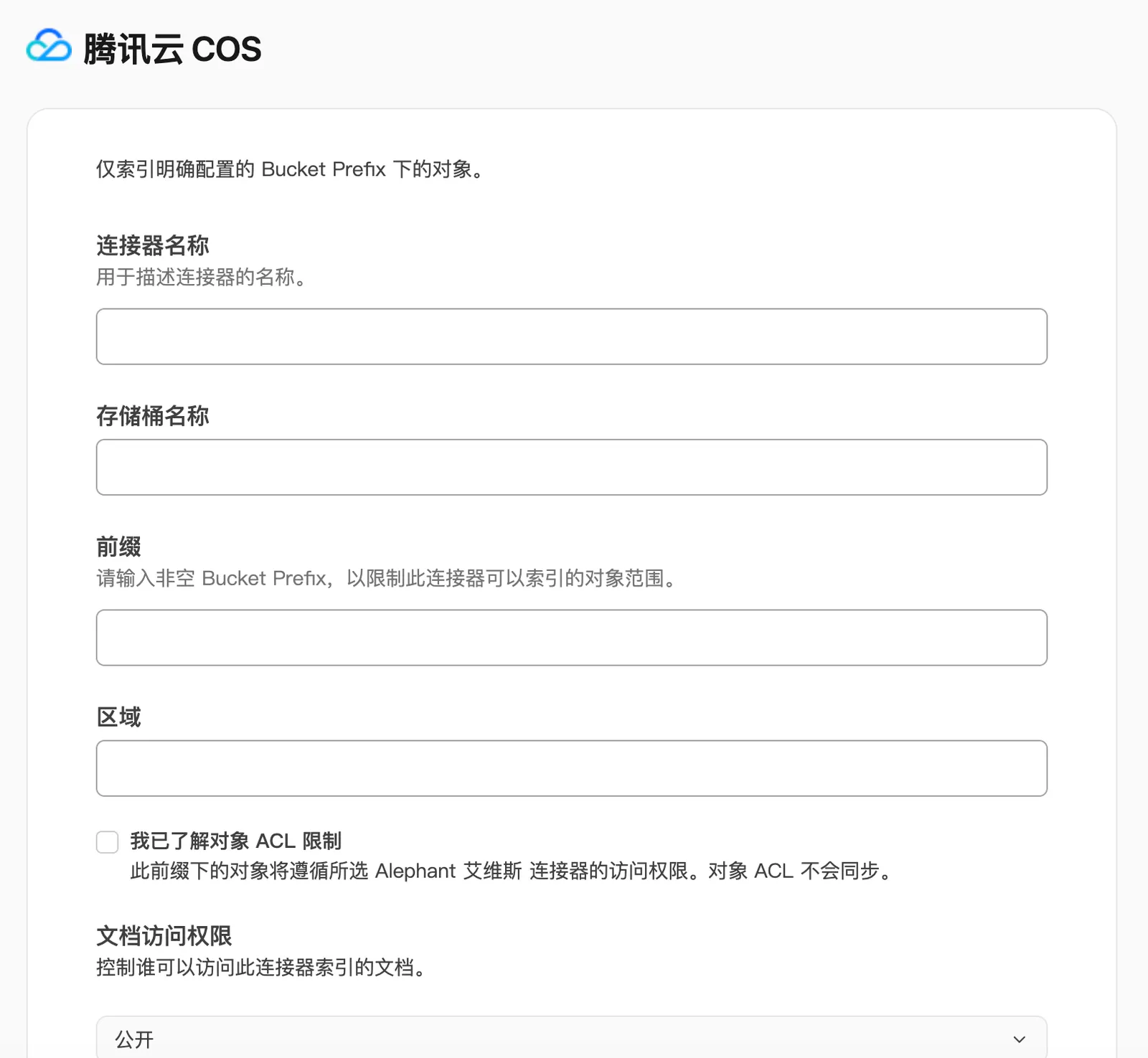
The prefix should start with a normal directory name, not /, and should usually end with /. Do not include unapproved directories in the same connector scope.
Verify

- After creating the credential, confirm credential validation succeeds.
- Create the connector and run one index attempt.
- Confirm the indexed results include only objects under the
knowledge/prefix. - Search for a representative title or sentence from an uploaded file and confirm the result cites the source.
- Test with an unauthorized AIvis user and confirm private connector content is not searchable.