
Nutstore & WebDAV

View as Markdown

The Nutstore and WebDAV connector reads files from the official Nutstore WebDAV service or an enterprise private WebDAV deployment. It is read-only: AIvis indexes matching files, but does not upload, modify, move, or delete source files.

Use this connector when teams already store shared files in Nutstore or in a compatible WebDAV server and want those files to become searchable by Agents and knowledge search.

What You Need

ItemNutstoreCustom WebDAV
WebDAV serviceSelect Nutstore.Select Custom WebDAV.
Base URLUse the default https://dav.jianguoyun.com/dav/.Enter the WebDAV endpoint approved by your administrator.
UsernameUse the Nutstore account email address.Use the WebDAV account name for the target server.
PasswordUse a Nutstore application password from Third-party Application Management. Do not use the Nutstore login password.Use the password or token issued for the WebDAV account.
Root pathsUse one or more absolute directories, such as / or /Team/Handbook.Use absolute POSIX paths that exist on the WebDAV server.

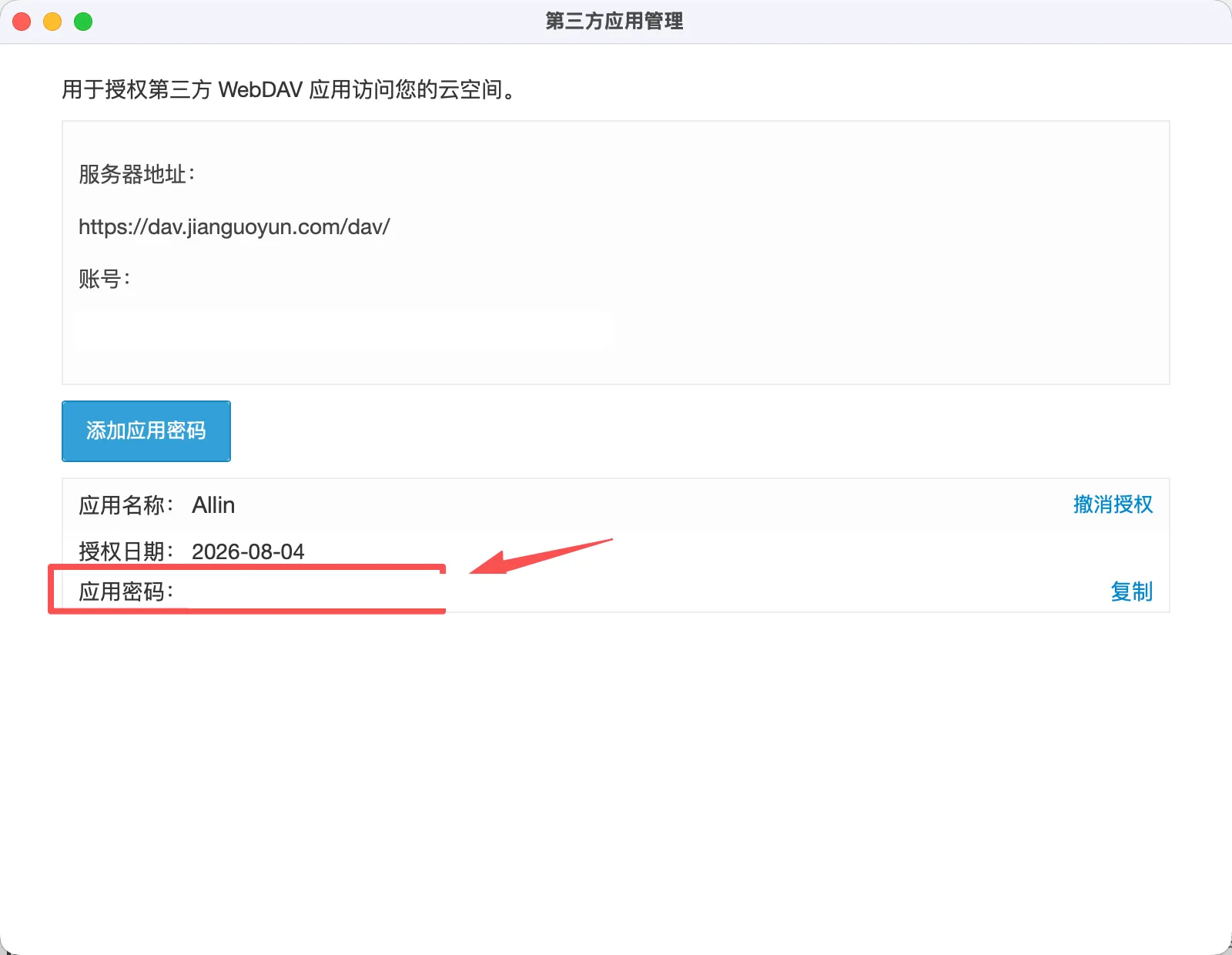
Nutstore’s official WebDAV help describes the same connection triplet: server address, account, and application password. For the official service, the server address is https://dav.jianguoyun.com/dav/; the account is the Nutstore login email; the password is the generated third-party application password.

Generate a Nutstore Application Password

For the official Nutstore service, create a dedicated application password before creating the AIvis credential.

  1. Sign in to the Nutstore website.
  2. Open the account menu, then go to Account Information and Security Options.
  3. In Third-party Application Management, choose Add Application Password.
  4. Enter an application name such as AIvis and generate the password.
  5. Copy the generated application password and paste it into Password or App Password in the AIvis credential form.

The Nutstore mobile app also exposes Third-party Application Management from settings. Generate one password per integration where possible, so you can revoke AIvis access without affecting other WebDAV clients.
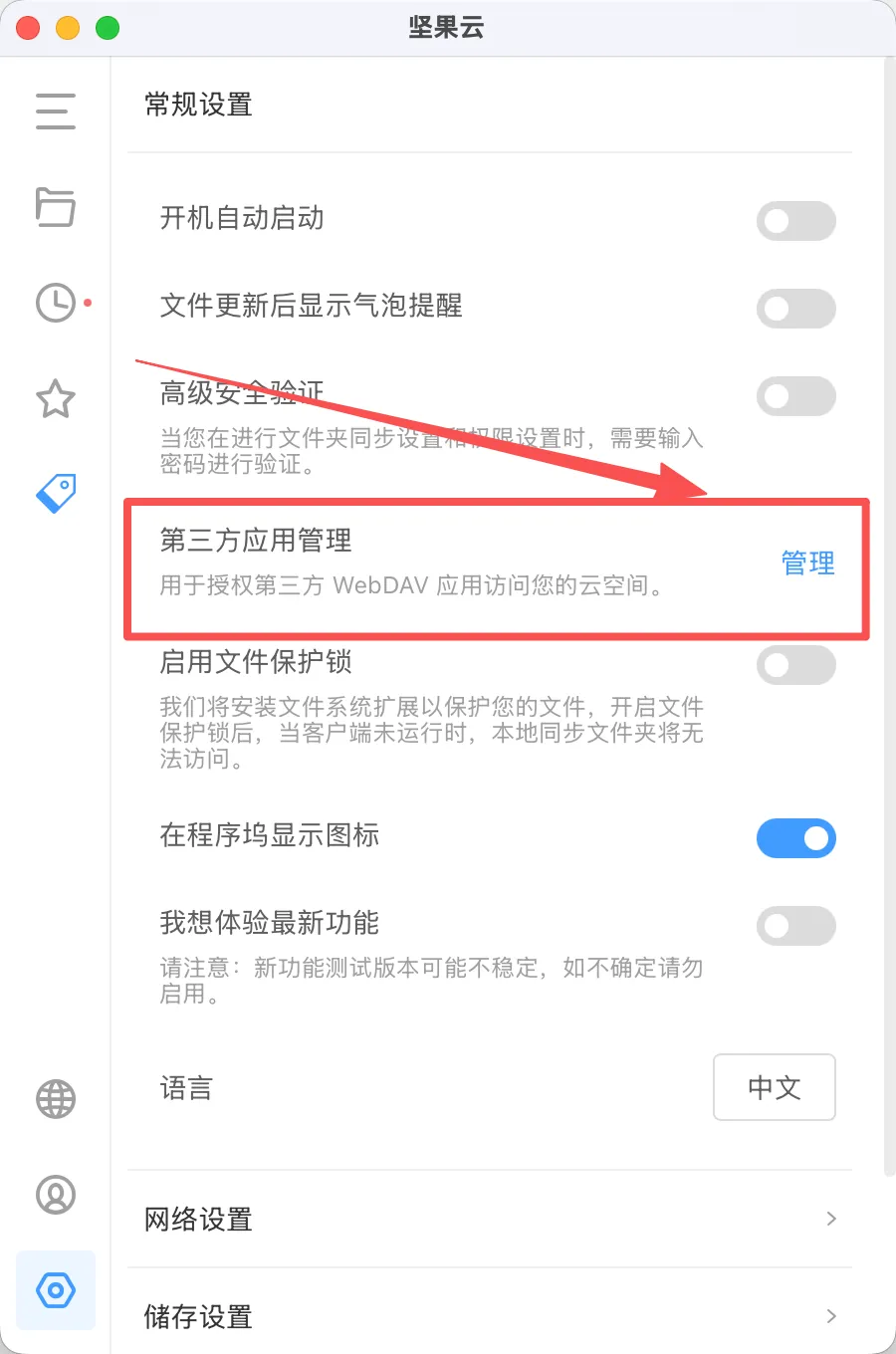
Nutstore settings showing Third-party Application Management for WebDAV app passwords

Nutstore Third-party Application Management page showing the WebDAV server address and a redacted application password

Create the Credential

AIvis FieldRecommended ValueNotes
NameA descriptive name such as Nutstore - Knowledge.This is only shown inside AIvis.
WebDAV ServiceNutstore.Keeps the official base URL fixed to https://dav.jianguoyun.com/dav/.
WebDAV Base URLhttps://dav.jianguoyun.com/dav/.The default is filled automatically for Nutstore.
UsernameNutstore account email address.Use the account that can read every folder you plan to index.
Password or App PasswordNutstore application password.This is the value generated in Third-party Application Management.
Allow Private NetworkLeave off for official Nutstore.Enable only for an approved private WebDAV endpoint.
Allow Insecure HTTPLeave off for official Nutstore.HTTP is only allowed when private-network access is explicitly approved.
Custom CA CertificateLeave empty for official Nutstore.Use PEM certificates only for private WebDAV servers with private trust chains.

After saving the credential, use Test connection before creating or enabling the connector.
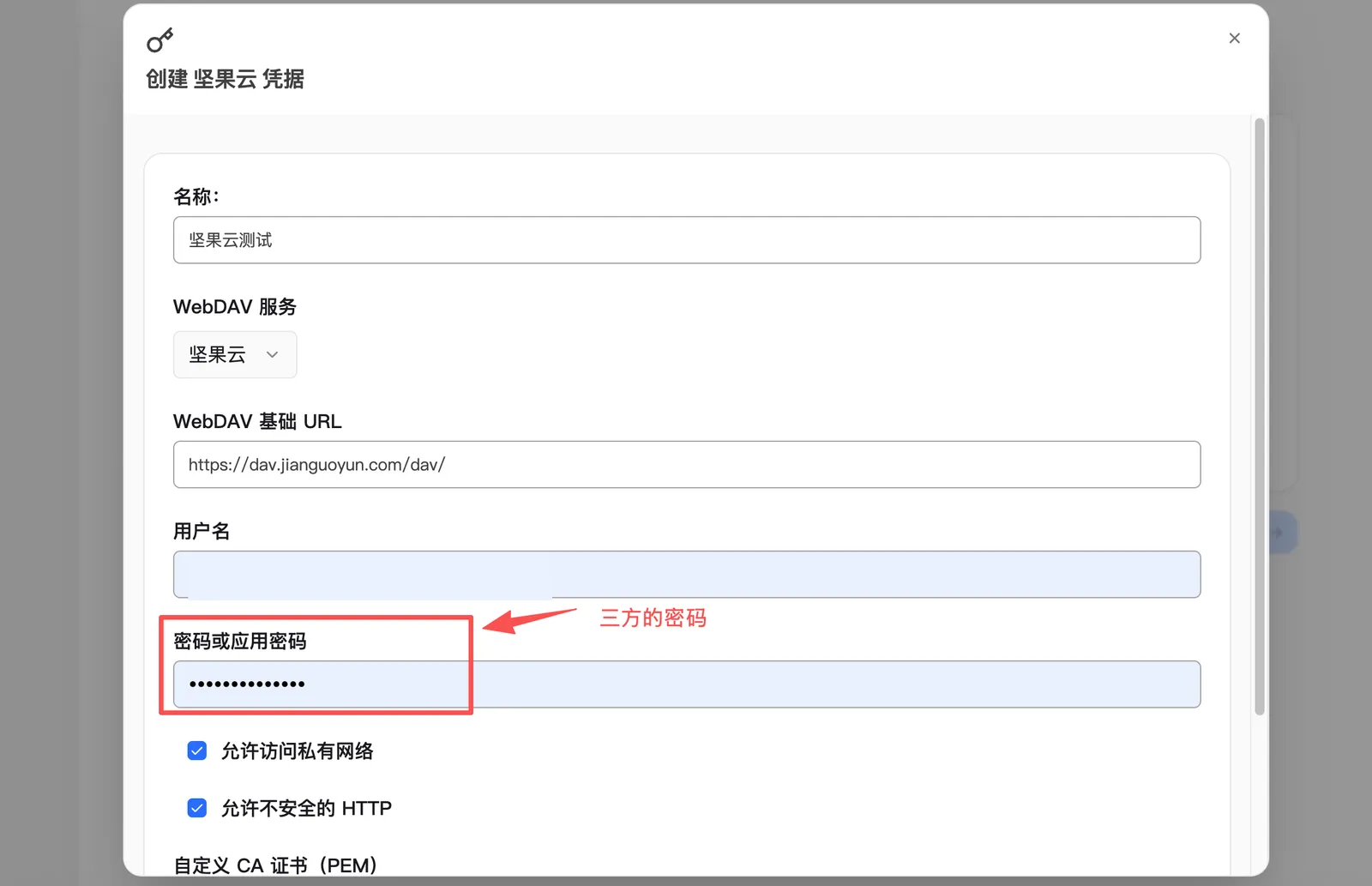
AIvis Nutstore credential form showing the official WebDAV base URL, username, and app password field

Configure the Connector

AIvis FieldRequirementExample
Connector NameA human-readable connector name.Nutstore Team Docs
Root PathsOne or more WebDAV directories to index. Paths must start with /, use forward slashes, and cannot contain .../, /Team/Handbook, /Projects/2026/
I Understand Object ACL LimitationsMust be checked.WebDAV file-level ACLs are not synchronized.
Document AccessChoose who can search documents indexed by this connector.Use Private or group-restricted access for non-public content.
Maximum File SizeMaximum file size in bytes for indexing.Keep the default unless your deployment has approved larger documents.

Use narrow root paths whenever possible. Indexing / is valid, but it includes every readable folder under the WebDAV account and can produce more content than intended.
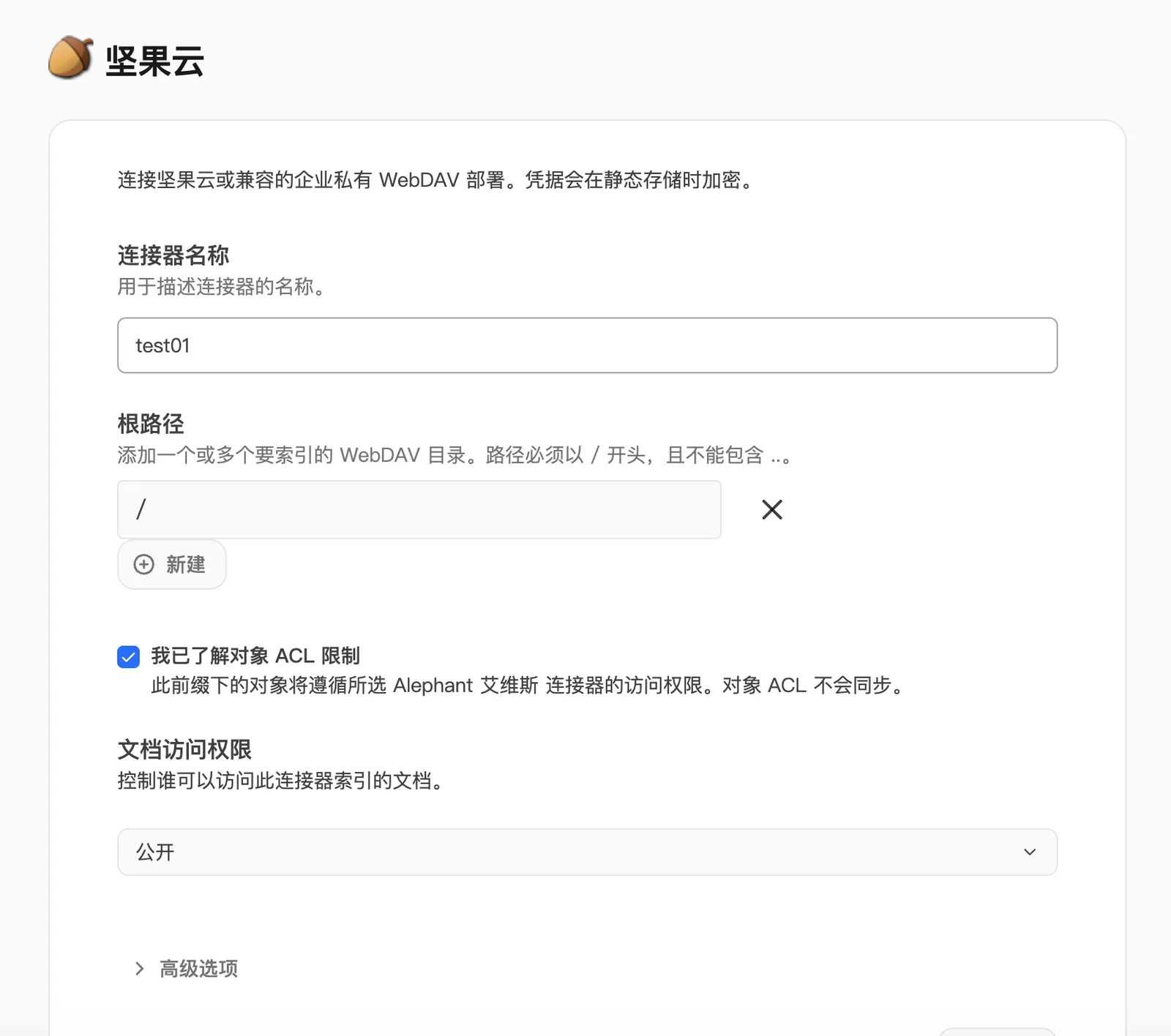

AIvis Nutstore connector form showing root paths, ACL limitation acknowledgement, and document access

AIvis connector list showing a scheduled Nutstore connector and indexed document count

Permissions and ACL Boundary

The WebDAV account controls what AIvis can read during indexing. AIvis does not import Nutstore or WebDAV file-level ACLs into document permissions.

That means:

  • Documents under the selected root paths inherit the connector’s AIvis access setting.
  • If different teams should see different folders, create separate connectors with separate root paths and access groups.
  • Do not make the connector organization-public unless every indexed file is safe for all eligible users in the organization.
  • If the WebDAV account loses access to a root path, future syncs can fail or stop indexing that path.

Nutstore Service Limits

Nutstore applies WebDAV usage limits. The exact limits can vary by plan or deployment, but the official help currently documents request-frequency limits and a per-request directory item limit. Large folders, frequent syncs, or many parallel connectors can hit those limits.

Practical guidance:

  • Prefer several scoped root paths over one very large root when only a few folders matter.
  • Avoid scheduling many Nutstore connectors to sync at the same time with the same account.
  • If a folder contains many files and indexing appears incomplete, split the folder or narrow the root path.
  • If the connection starts failing after repeated tests or syncs, wait for the WebDAV rate window to reset and then retry.

Verification

After creating the credential and connector:

  1. Test the credential connection.
  2. Save the connector with the ACL limitation acknowledgement checked.
  3. Run an initial sync.
  4. Confirm representative files under each root path are indexed.
  5. Confirm files outside the root paths are not indexed.
  6. Search as an allowed user and verify expected results appear.
  7. Search as a user outside the connector audience and verify restricted files do not appear.
  8. Rotate the Nutstore application password in a maintenance window and retest the connection.

Troubleshooting

SymptomLikely CauseResolution
Authentication failedThe username is not the Nutstore email, or the password is the login password instead of the application password.Generate a new application password in Nutstore Third-party Application Management and update the AIvis credential.
Root path not foundThe path does not exist, does not start with /, contains .., or the account cannot read it.Check the folder path in Nutstore or WebDAV and use an absolute path such as /Team/Handbook/.
Permission deniedThe WebDAV account cannot read the selected folder.Grant the account access in Nutstore or create a connector for a folder it can read.
TLS or certificate failureThe custom WebDAV endpoint uses an untrusted certificate.Use HTTPS with a trusted certificate, or provide the approved custom CA PEM for private WebDAV.
Request blocked by network policyA private address or insecure HTTP endpoint was configured without explicit approval.Use the official Nutstore URL, or enable the private-network and HTTP options only for approved internal endpoints.
Directory listing fails or appears incompleteNutstore WebDAV limits or a large directory may be involved.Narrow the root path, split folders across connectors, reduce sync concurrency, and retry after the rate window resets.
File is skippedThe file exceeds the connector size threshold or cannot be extracted.Adjust the maximum file size only after confirming deployment limits and indexing cost.