

Feishu
Use the Feishu connector to index approved Wiki content into AIvis. Start with one small knowledge space or subtree, verify the indexed documents, and expand the scope only after the content owner approves it.
Use cases
What it indexes
The connector discovers Wiki nodes in each configured scope and indexes nodes backed by Feishu Docx documents. It preserves headings, paragraphs, lists, code blocks, quotes, tasks, and callouts as searchable text.
When Include attachments is enabled, supported images and files embedded in a document are indexed as child documents. Wiki nodes backed by unsupported resource types are reported as document failures instead of being silently indexed.
Prerequisites
Before creating the connector, prepare a Feishu custom app and confirm all of the following:
- The app is enabled for the tenant that owns the target knowledge space.
- Application-identity permissions cover reading Wiki spaces and nodes, reading Docx documents and blocks, and downloading Drive media when attachments are enabled.
- The app or bot has resource-level access to every configured knowledge space. Add it as a knowledge-space member or administrator when the space does not otherwise grant the required access.
- The AIvis API and indexing workers can reach
open.feishu.cnthrough the deployment’s approved DNS and outbound network path.
API permission approval and knowledge-space membership are separate checks. A successful access-token request does not prove that the app can read a particular space.
Prepare the app in Feishu
- Open the Feishu Open Platform and go to the Developer Console.
- Select the target company and create a Custom App. The app name can be
AIvis, the description can beAIvis connector, and the icon can follow your company’s app policy.
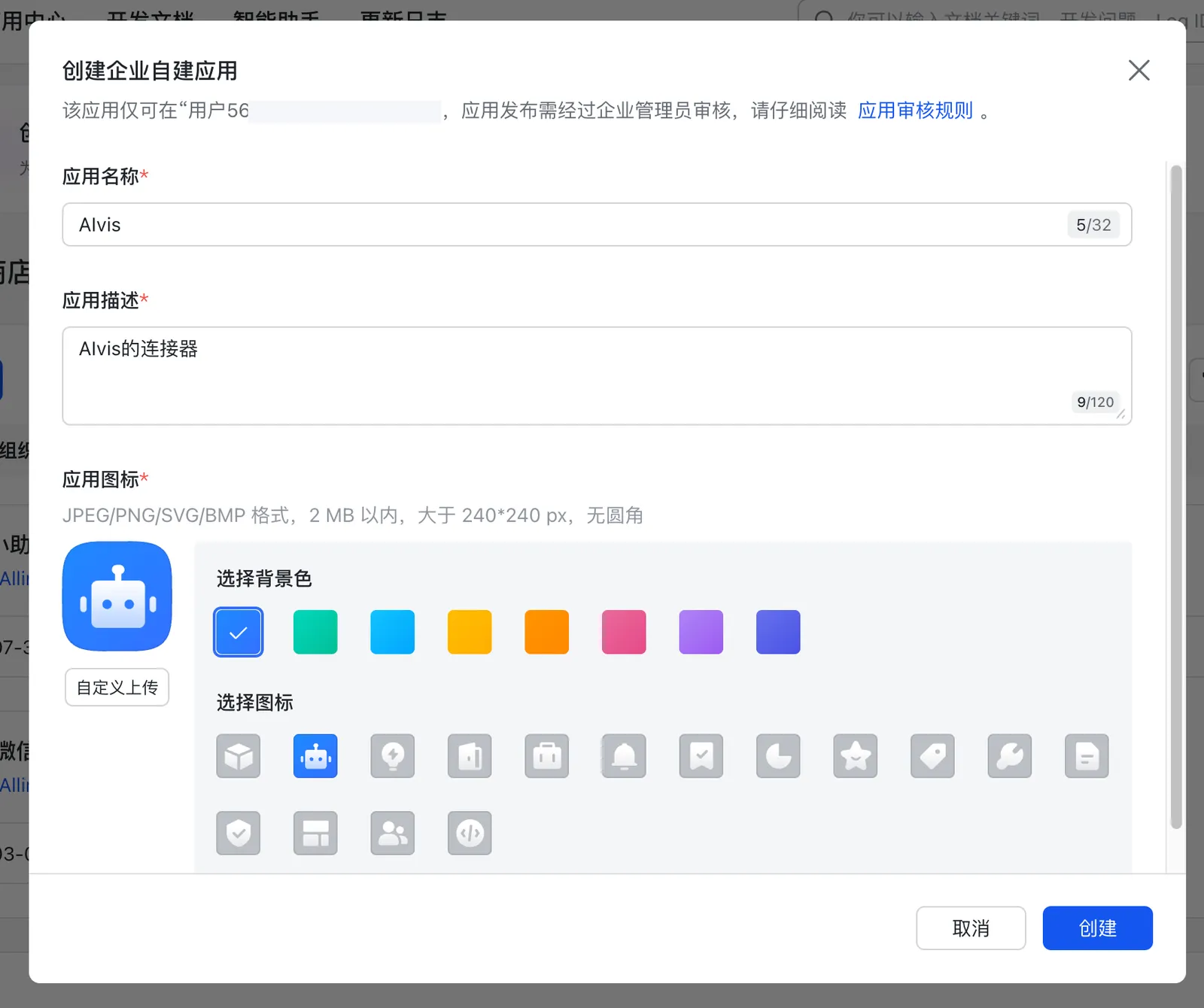
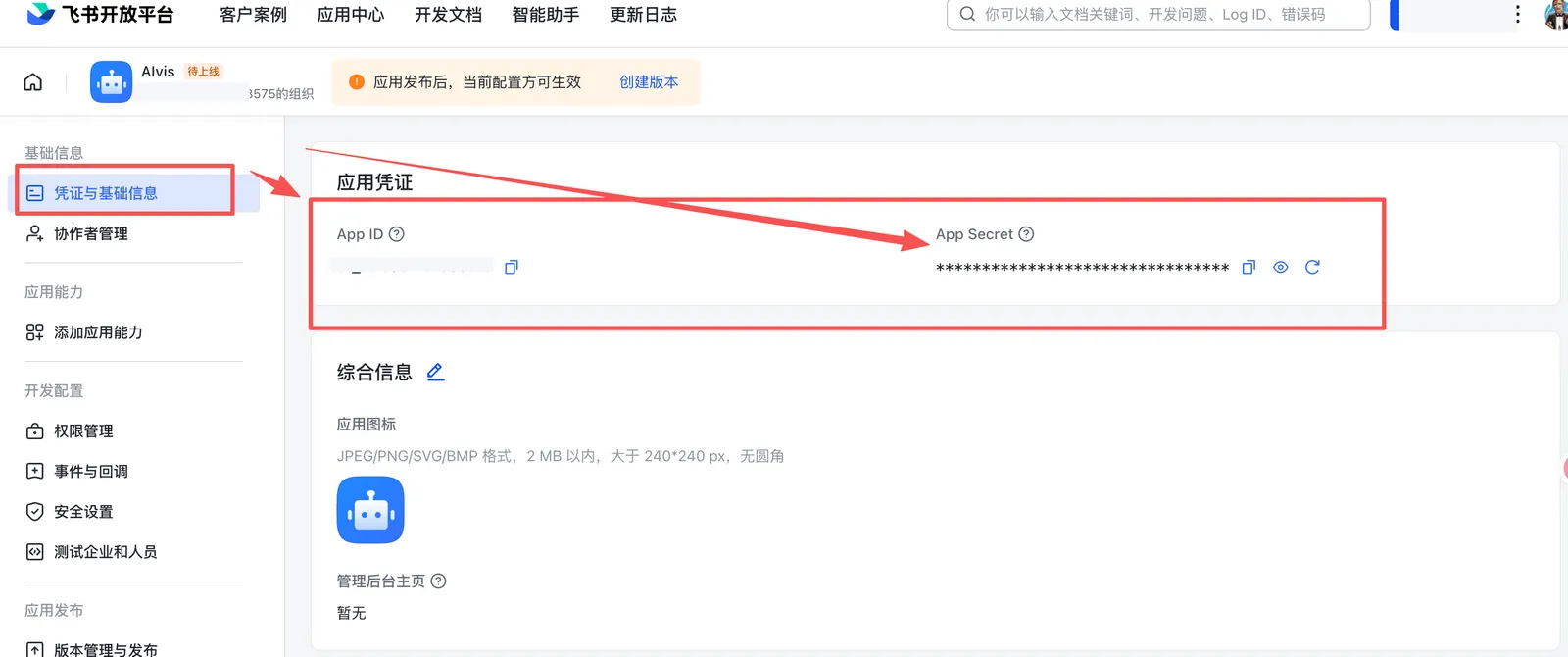
- In the app sidebar, open Credentials & Basic Info. In the App Credentials section, copy the
App IDandApp Secret. These map directly to the AIvis Feishu credential fields.
- In Permission Management, add the Wiki, Docx, and optional Drive-media read permissions required by the connector, then submit them for approval if your company requires it.
- In Version Management & Release, create and publish an app version. Feishu only applies the current app configuration after the app version is released.
- Add the app or bot to the knowledge space you want to index, or ask a space administrator to grant it access to the target root node.
Do not forward the App Secret in screenshots, shared documents, or tickets that unrelated people can access. If the secret has been exposed, regenerate it in Feishu and update the AIvis credential.
Create credentials
In the AIvis Admin Panel, create a Feishu credential with:
AIvis exchanges these values for a short-lived tenant_access_token and refreshes it automatically. Do not paste a user access token or tenant access token into either credential field, and never store the App Secret in an Agent instruction, chat message, or shared document.
If credential validation fails, return to Feishu’s Credentials & Basic Info page, copy the App ID and App Secret again, and confirm that the app has been released to the target company.
Find the indexing scope
Every connector requires at least one explicit scope. Use one of these formats:
To find SPACE_ID, open the knowledge-space settings and copy the space identifier shown in the URL, or call Feishu’s list-spaces API and read data.items[].space_id. To find ROOT_NODE_TOKEN, open the intended root page and copy the token after /wiki/ in its URL.
Replace both placeholders with real values. The literal text root_node_token is not a valid subtree root. A root node must belong to the space specified before the slash. Identifiers may contain only letters, numbers, underscores, and hyphens.
Configure the connector
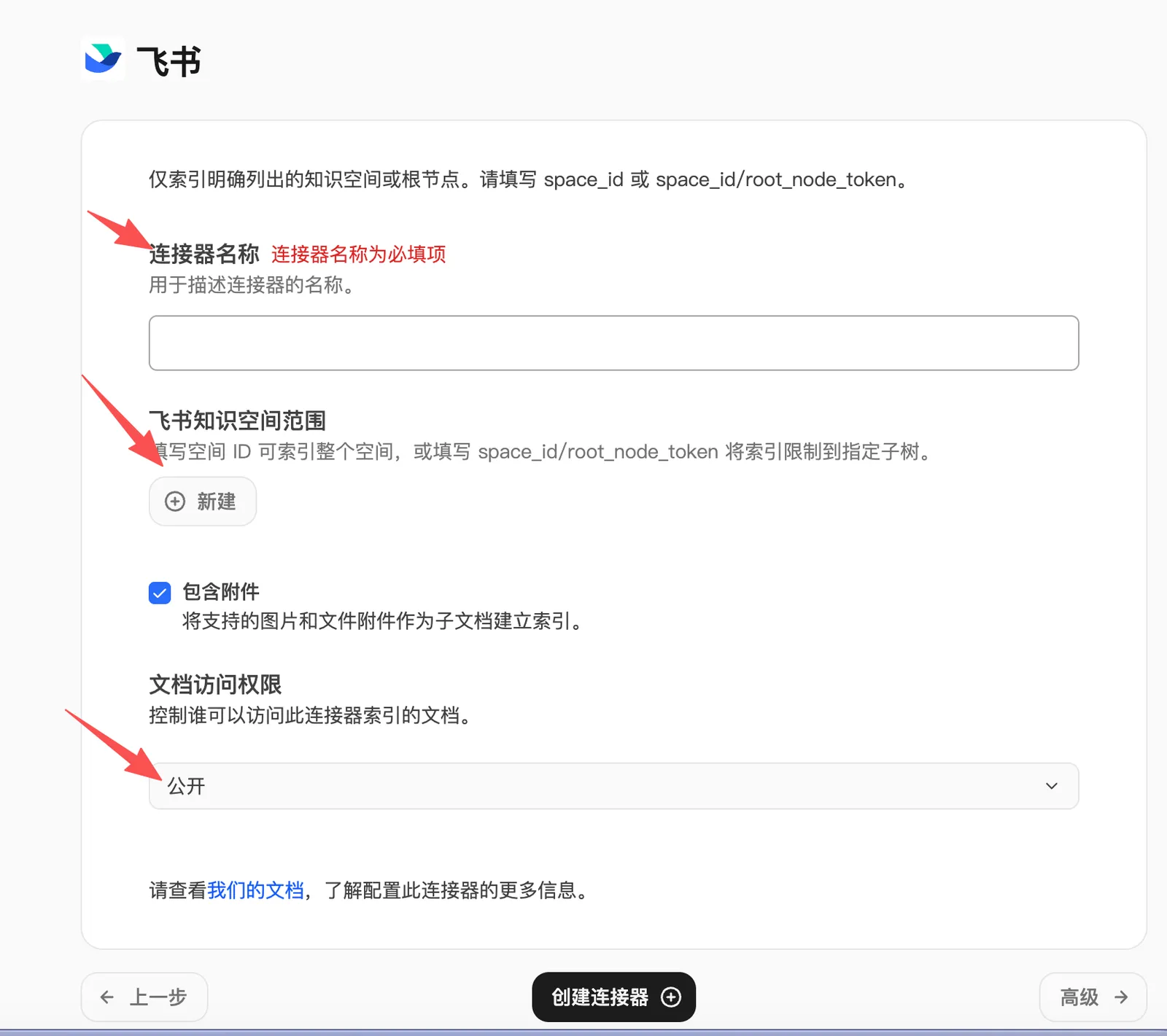
- Open Documents & Knowledge, choose Feishu, and select the credential created above.
- Fill in Connector name. This field is required. Use a name that identifies the space and purpose, such as
Feishu - Product Knowledge BaseorFeishu - Project A Delivery Docs. - Under Feishu knowledge-space scope, click New and add one approved
SPACE_IDorSPACE_ID/ROOT_NODE_TOKENper scope. Duplicate scopes are rejected. - Keep Include attachments enabled only when the deployment is approved to index embedded images and files. When enabled, supported images and file attachments are indexed as child documents.
- Set Document access. Choose Public when every user who can use this document set in the workspace may search the content. For restricted knowledge spaces, choose private access or assign specific groups.
- Click Create connector. AIvis validates every configured scope before saving it; fix the credential, scope, or Feishu resource permission before retrying if validation fails.
Start with a small scope for the first creation and indexing check, then expand to the full knowledge space after validation.
Verify indexing
- Confirm connector creation succeeds without a validation error.
- Run an index attempt and wait for it to complete.
- Review the indexed document count and any per-document failures. Unsupported Wiki resource types may appear as explicit failures.
- Open a representative indexed document and confirm its title, text, hierarchy, source link, and optional attachment children.
- Attach the resulting document set to a test Agent and ask a question whose answer exists only in the indexed Feishu documents. Require the Agent to cite the source document.
After changing app permissions, knowledge-space membership, scope values, or attachment settings, run a new index attempt and repeat these checks.
Troubleshooting
Related pages
- Connectors & Indexing explains connector runs and document sets.
- Index Settings covers deployment-wide indexing behavior.